
How To Add a Subjects
In this step, you will learn how to add a course for the new academic year.
Click the ‘Subjects’ button on the left.
Then click the blue ‘Add New’ button to add a subject.
Fill in all fields as shown in the image below:
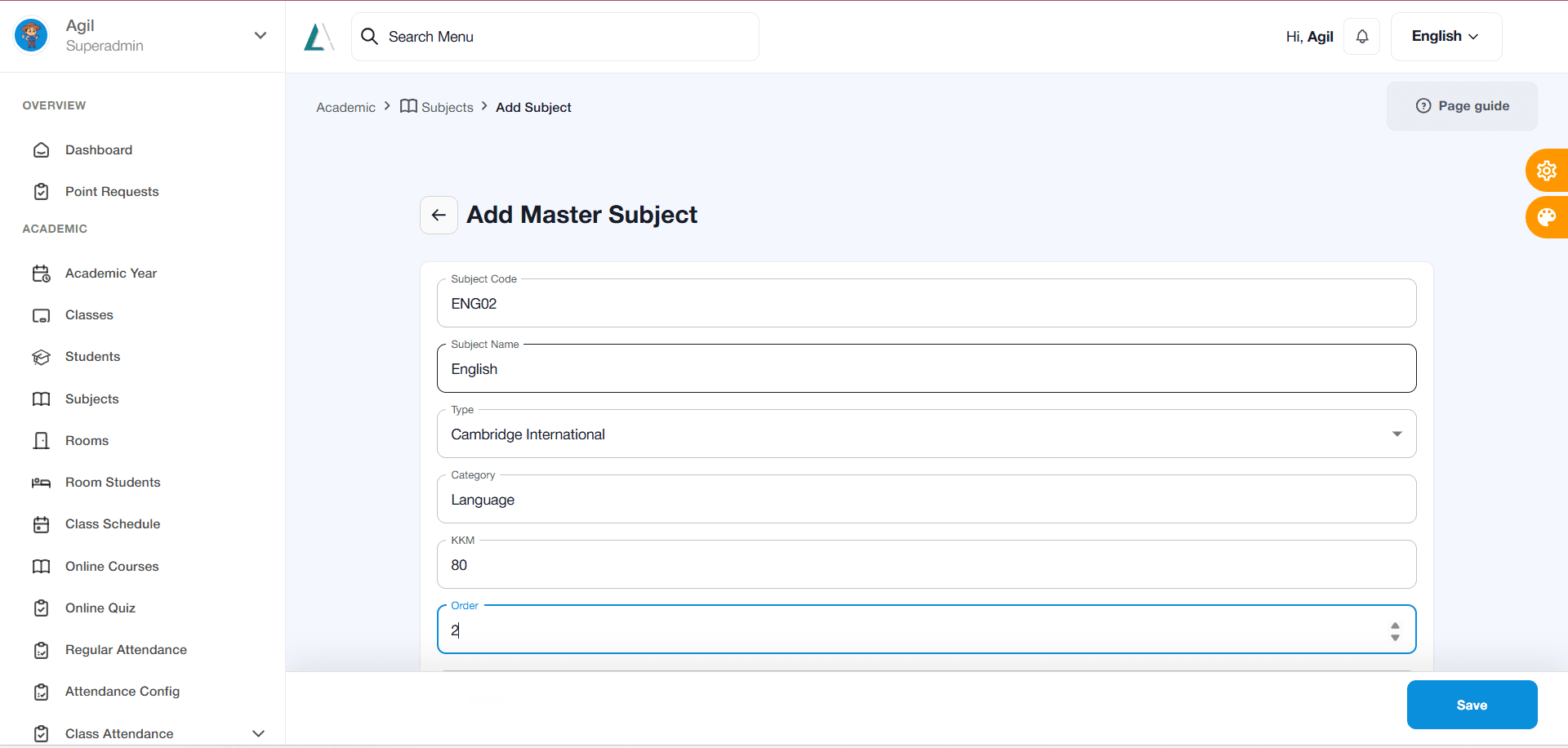
How To Add a Subjects Enter the subject code according to the subject being added; for example, if the subject is English, use the code ‘ENG02’.
If the subject being added is, for example, Chemistry, create a code corresponding to the subject, such as ‘CMS02’.
There are no specific rules for filling in the subject code; it can be entered as the teacher prefers, provided it matches the subject being added.
Similarly, there are no specific rules regarding the numbers used in the subject code.
Next, select the curriculum type used by the institution or school.
Then, fill in the subject category for the added subject, such as Science, Social Studies, Language, etc.
Fill in the Minimum Competency Criteria (KKM) according to the institution’s or school’s standards.
Fill in the “Order” column only for website formalities; in the example above, simply follow the sequence of subjects already listed or registered.
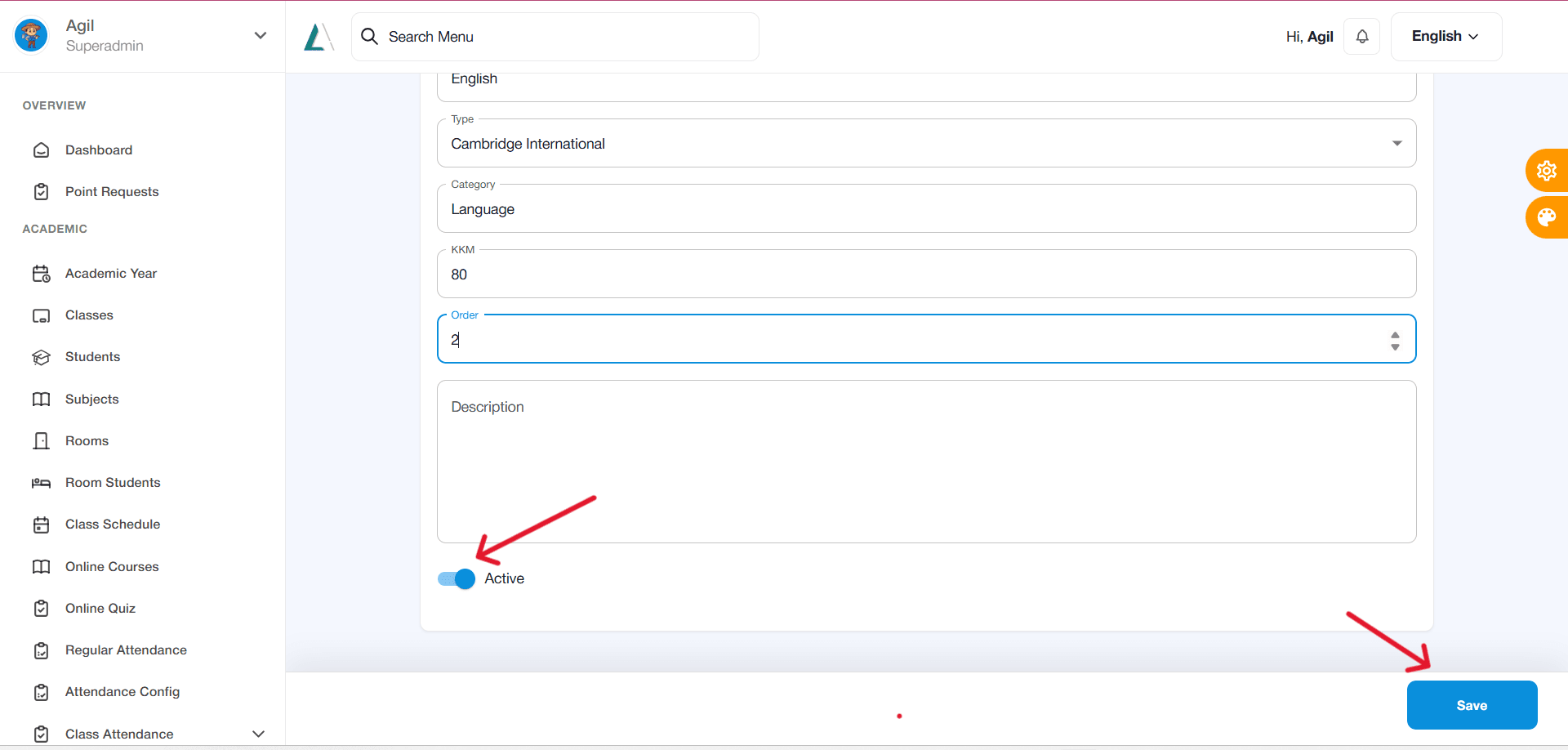
The “Description” column may be skipped or left blank.
Finally, make sure to click the “Activate” button below the “Description” column to indicate that the subject can now be added by students.
Click the “Save” button to save
How To Add a Subjects