
User Accounts and Access Control (RBAC) in Aerish App
Create admin, teacher, and student accounts, design roles and RBAC permissions, and keep Aerish secure.
Managing access control and user accounts is the foundation of security for any pesantren information system. This guide is written for the main admin and IT operators who run Aerish, so that every staff member, teacher, guardian, and student can reach only the menus that fall under their responsibility. With a tidy RBAC (Role-Based Access Control) setup, you reduce the risk of data misuse while making it easier to divide duties across departments.
In Aerish, all user management is centralized in the System & Users module. You will work with four core menus: creating accounts, designing roles and permissions, approving profile change requests, and monitoring the activity trail. After reading this guide, you will be able to build an account structure that is secure, measurable, and easy to maintain for the long term.
Prerequisites
- You are signed in as an admin whose role has permission to manage users and access control.
- Employee, teacher, and student data already exist in their modules so accounts can be linked to the correct profiles.
- The pesantren organizational structure is clear: who needs access to Finance, Academics, HR, Admissions, and other modules.
- Basic security policies are agreed upon, such as password rules and who is allowed to approve profile changes.
- You have a stable internet connection and an up-to-date browser for a smooth experience in the admin dashboard.
Understanding User Account Types
Before creating accounts, understand that Aerish recognizes several account types with different contexts. This matters so that each person gets the experience and permissions appropriate to their role.
- Admin/Operator — staff who run the day-to-day operation of the app, from Finance to Academics. Their access is tightly controlled through roles.
- Teacher — fills in attendance, grades, and materials. Usually they only see the classes and students they teach.
- Student — accesses schedules, grades, bills, and personal information through the student app.
- Guardian — monitors their child's progress and bills, and receives notifications from the pesantren.
By separating account types from the start, you avoid confusion when assigning permissions. A teacher should not see payroll data, and a guardian must not touch administration menus. All of those boundaries are later translated into concrete permissions.
Creating and Managing Accounts
Every account is created and maintained from the Accounts menu at /admin/account. From here you can add new users, edit data, reset passwords, and deactivate accounts that are no longer in use.
- Open the Accounts menu at /admin/account and click the add-user button.
- Choose the account type (admin, teacher, student, or guardian) to match the person's role in the pesantren.
- Fill in the identity details and link the account to an existing employee or student profile to avoid duplicate data.
- Set a username or login email along with a secure initial password.
- Assign one or more roles that determine which menus this account can access.
- Save, then share the credentials with the user through a secure channel.
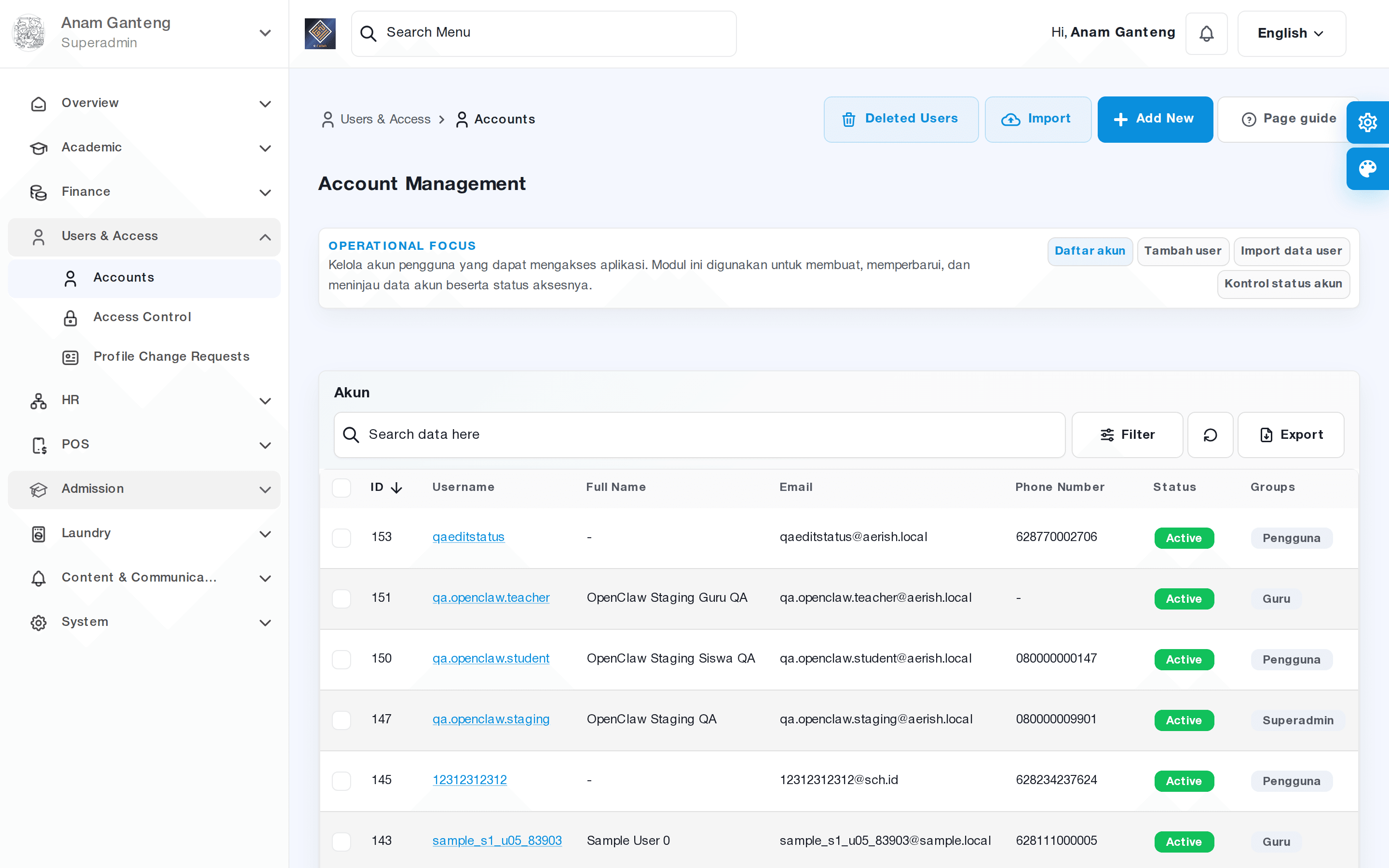
For accounts that are no longer active, such as an employee who has resigned or a student who has graduated, do not delete them right away. Simply deactivate them so their history and data trail remain intact for auditing. A deactivated account cannot sign in, but its historical data is not lost.
Designing Roles and Access Control (RBAC)
The heart of security in Aerish is RBAC, a model in which permissions are not granted directly to people but to roles, and people receive permissions by being assigned to those roles. All of this is configured in the Access Control menu at /admin/access-control.
This approach is far tidier than setting permissions one by one for each user. Imagine you have ten finance operators; instead of configuring permissions ten times, you create a single "Finance Operator" role and assign all ten people to it. When policy changes, you only need to edit one role.
Creating a new role
- Go to Access Control at /admin/access-control and open the roles tab.
- Click add role and give it a clear name such as "Treasurer", "Homeroom Teacher", or "Admissions Committee".
- Write a short description so other admins understand the scope of the role.
- Save the role before mapping permissions.
Mapping granular permissions
Each role is given a set of granular permissions, usually per module and per action such as view, create, edit, or delete. The recommended principle is least privilege: grant only the permissions the role genuinely needs to do its work.
- Select the role you want to configure, then open the list of available modules.
- Enable permissions per module, for example view and edit access in Finance but without delete permission.
- Repeat for every relevant module until the role's scope matches its needs.
- Save, and the permissions take effect immediately for all accounts that use the role.
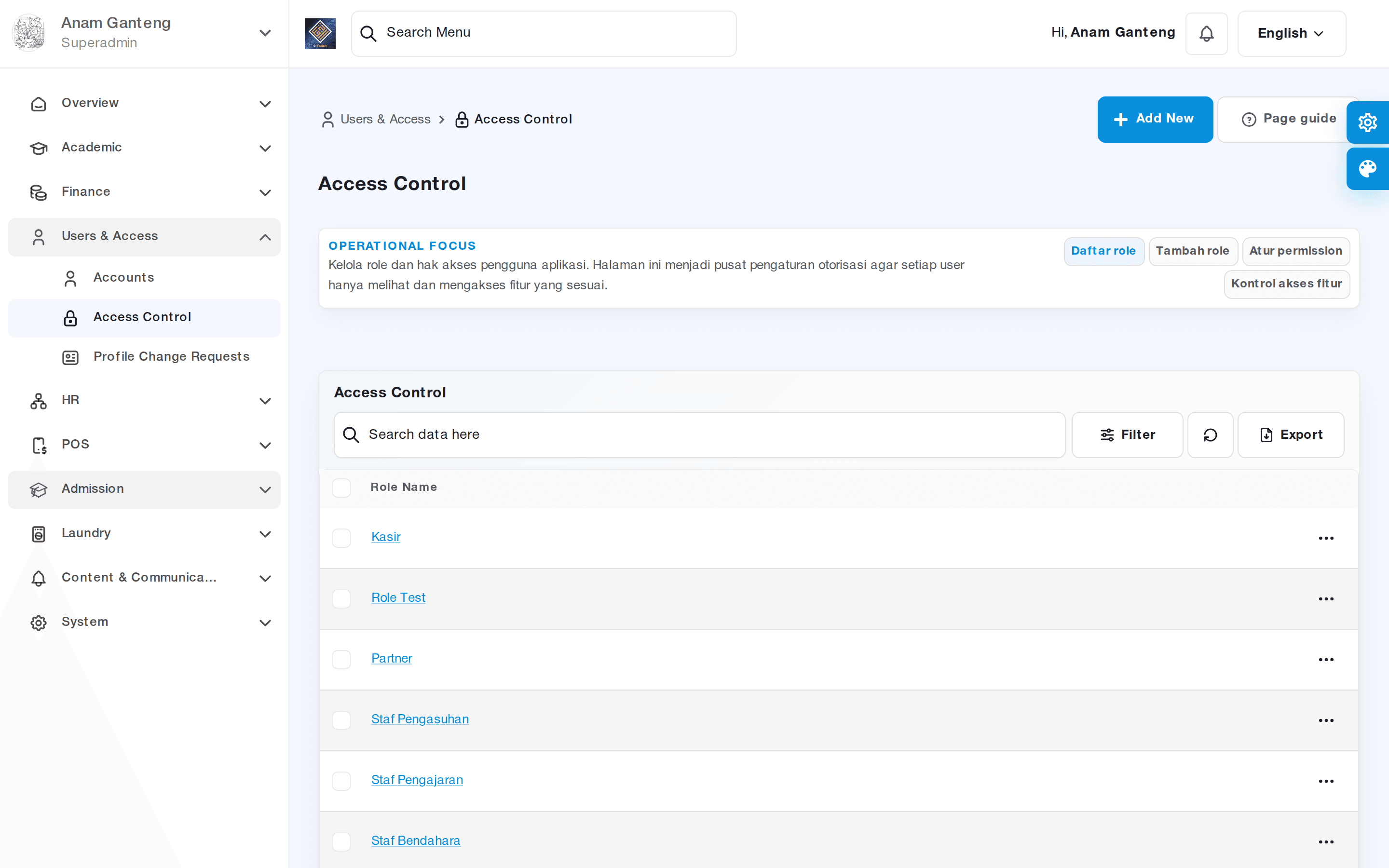
Apply the principle of least privilege. It is safer to start from minimum access and add permissions only when truly needed than to grant broad access early and forget to pull it back.
Reviewing Profile Change Requests
So admins are not overwhelmed by every data correction, Aerish provides a Profile Change Request flow at /admin/profile-change-request. Teachers, students, or guardians can submit changes to their personal data, and the admin simply reviews and approves or rejects them.
- Open Profile Change Request at /admin/profile-change-request.
- Inspect the list of incoming requests along with the old data and the proposed data.
- Verify that the change is correct, matching it against supporting documents when necessary.
- Approve it if valid, or reject it with a note so the requester knows the reason.
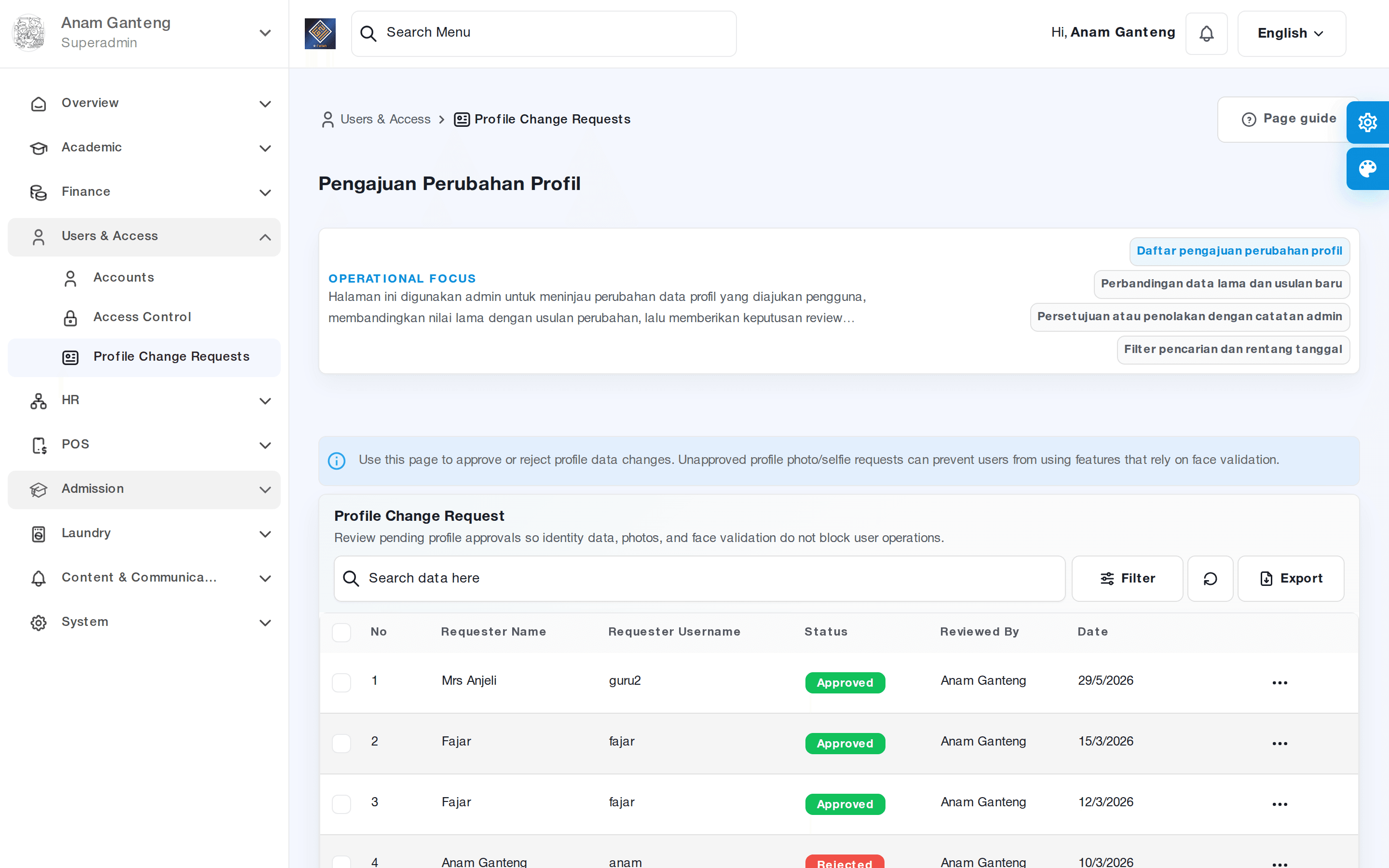
This flow preserves data integrity because changes do not happen quietly. Every correction records who submitted it and who approved it, so accountability becomes clear.
Monitoring Activity Logs
For auditing and investigation, use the Activity Logs menu at /admin/activity-logs. This menu records who did what and when, from sign-ins and important data changes to access-control adjustments.
Make it a habit to review the logs regularly, especially after major changes such as adding a new admin or adjusting roles. If data ever changes without explanation, the activity log is the first place to trace its history. You can filter by user, action type, or a specific time range to speed up the investigation.
Tips & Best Practices
- Design roles to follow the real organizational structure of the pesantren, not individuals, so they stay easy to maintain.
- Give roles descriptive names so other admins immediately understand their scope without asking.
- Apply least privilege and review permissions at the start of every semester or whenever someone changes position.
- Keep the number of super-admin accounts to an absolute minimum and ensure only trusted people hold them.
- Deactivate an account as soon as someone is no longer entitled to it; do not delay.
- Require strong passwords and encourage users to change the initial password at first sign-in.
Troubleshooting
A user cannot see a particular menu. Check the assigned role in the Access Control menu, then make sure the relevant module permission is enabled. Permission changes take effect after the user signs in again.
One person needs combined access to two departments. You can assign more than one role to the same account, or create a dedicated role that combines the permissions they need.
An old account can still sign in even though the person has left. Deactivate that account immediately from the Accounts menu and change its password. Also check the Activity Logs to make sure there is no suspicious activity.
Profile change requests are piling up. Schedule regular reviews, for example daily, and delegate this task to an operator with a dedicated role so it does not rest on a single person.
FAQ
What is the difference between a role and a permission?
A permission is a concrete right to perform an action, for example "edit bill data". A role is a named group of permissions that is then assigned to user accounts. You manage permissions at the role level, not per person.
Can one account have more than one role?
Yes. Aerish lets you assign several roles to a single account, and the effective permissions are the union of all those roles. This is useful for staff who juggle multiple duties.
What if I delete an account by mistake?
That is why we recommend deactivating rather than deleting. Deactivating preserves the data history while preventing sign-in. If an account has already been deactivated, you can simply reactivate it when needed.
Who should approve profile change requests?
Ideally an operator with a dedicated role who understands the related data, for example the administration staff for student data. Avoid granting approval permission to too many people so accountability stays manageable.
How do I trace a suspicious data change?
Open the Activity Logs menu, filter by time range and user, then trace the recorded actions. This log serves as audit evidence that helps ensure accountability across all admins.
Related menus in the app
- Accounts — where you create, edit, and deactivate admin, teacher, student, and guardian accounts.
- Access Control — design roles and map granular RBAC permissions for each module.
- Profile Change Request — review, approve, or reject proposed changes to users' personal data.
- Activity Logs — monitor the user activity trail for auditing and security purposes.