
Student Billing and SPP Payment Guide in Aerish App
Create bill types, issue SPP invoices, manage invoices, and record student payments inside Aerish.
Managing student billing and SPP payments cleanly is the backbone of any pesantren's finances, and Aerish provides a complete billing flow from creating bill types to recording payments. This guide is written for finance admins and treasurers responsible for issuing bills, managing invoices, and tracking arrears inside the Aerish app.
By following the steps below, you can build a transparent pesantren finance system: every student knows exactly what they owe, every payment is recorded automatically, and an arrears report is always ready when you need it. We will move from the master bill types, through mass bill issuance, invoice management, and finally payment recording via both manual entry and a payment gateway.
Prerequisites
Before you start creating bills, make sure the following are in place:
- Student data is complete and assigned to the correct class or cohort, since bills are usually issued in bulk per class or per cohort.
- The active academic year is set, so bills are tied to the correct period.
- Your account has access to the Finance module. If the billing menus are not visible, ask the system admin to grant the permission via Access Control.
- The school's receiving bank accounts are registered, especially if you enable bank transfer or a payment gateway.
- The fee amounts (monthly SPP, entry fee, activities, and so on) are finalized by the foundation or finance department.
Step 1: Setting Up Bill Types (Master Bills)
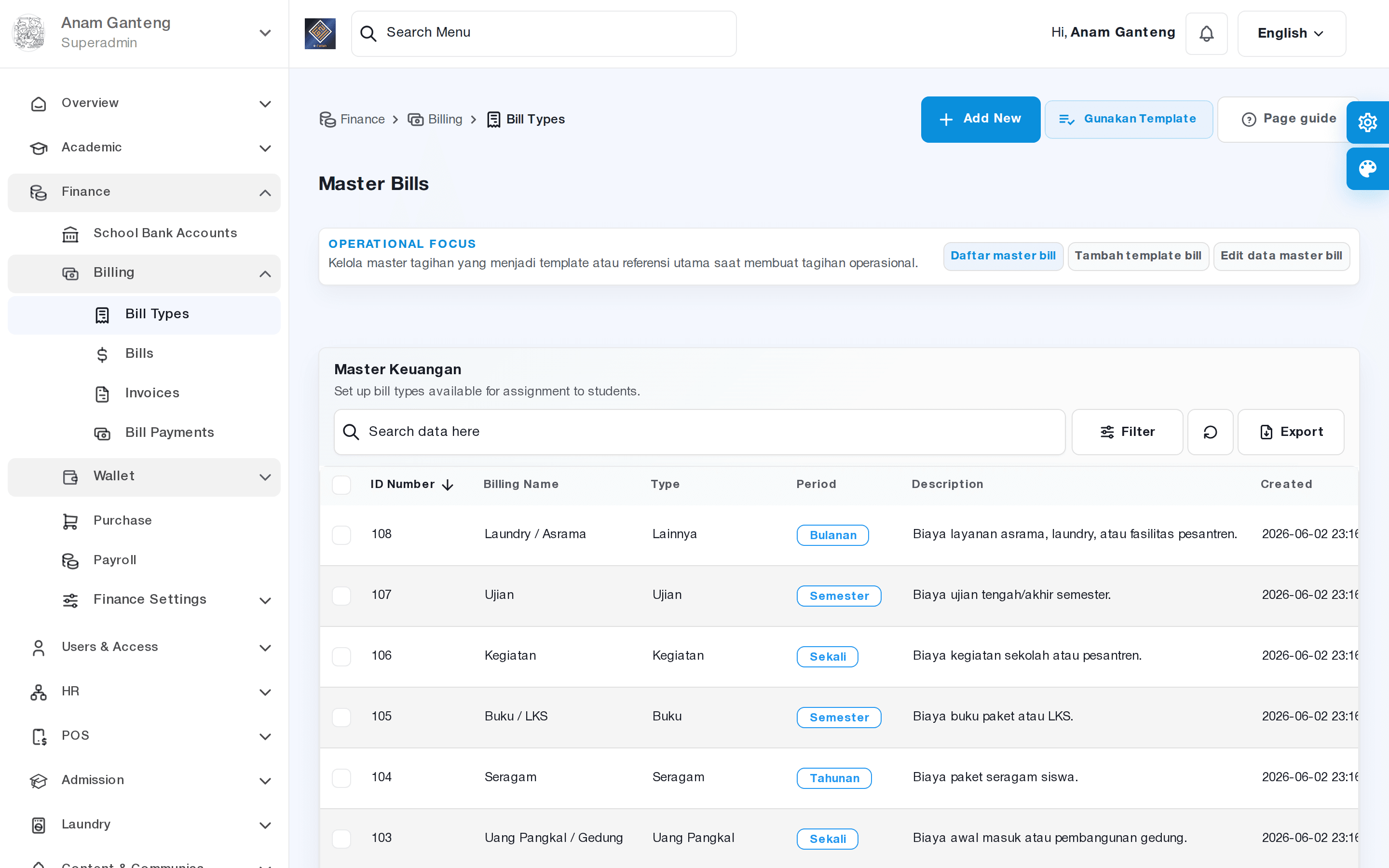
Every bill starts from the master bills. This is where you define the fee types charged to students, such as monthly SPP, building fees, activity fees, or uniforms. Open the Bill Types menu to manage this list.
- Go to the Bill Types menu at /admin/master-bills.
- Click add, then fill in the bill type name (for example, "Monthly SPP"), its category, and a default amount.
- Decide whether the bill is recurring (repeats each month) or one-time (like an entry fee).
- Save. This bill type becomes the template you use when issuing bills to students.
Setting up master bills with consistent naming from the start will make reporting and financial recaps much easier later on.
Step 2: Issuing Bills to Students
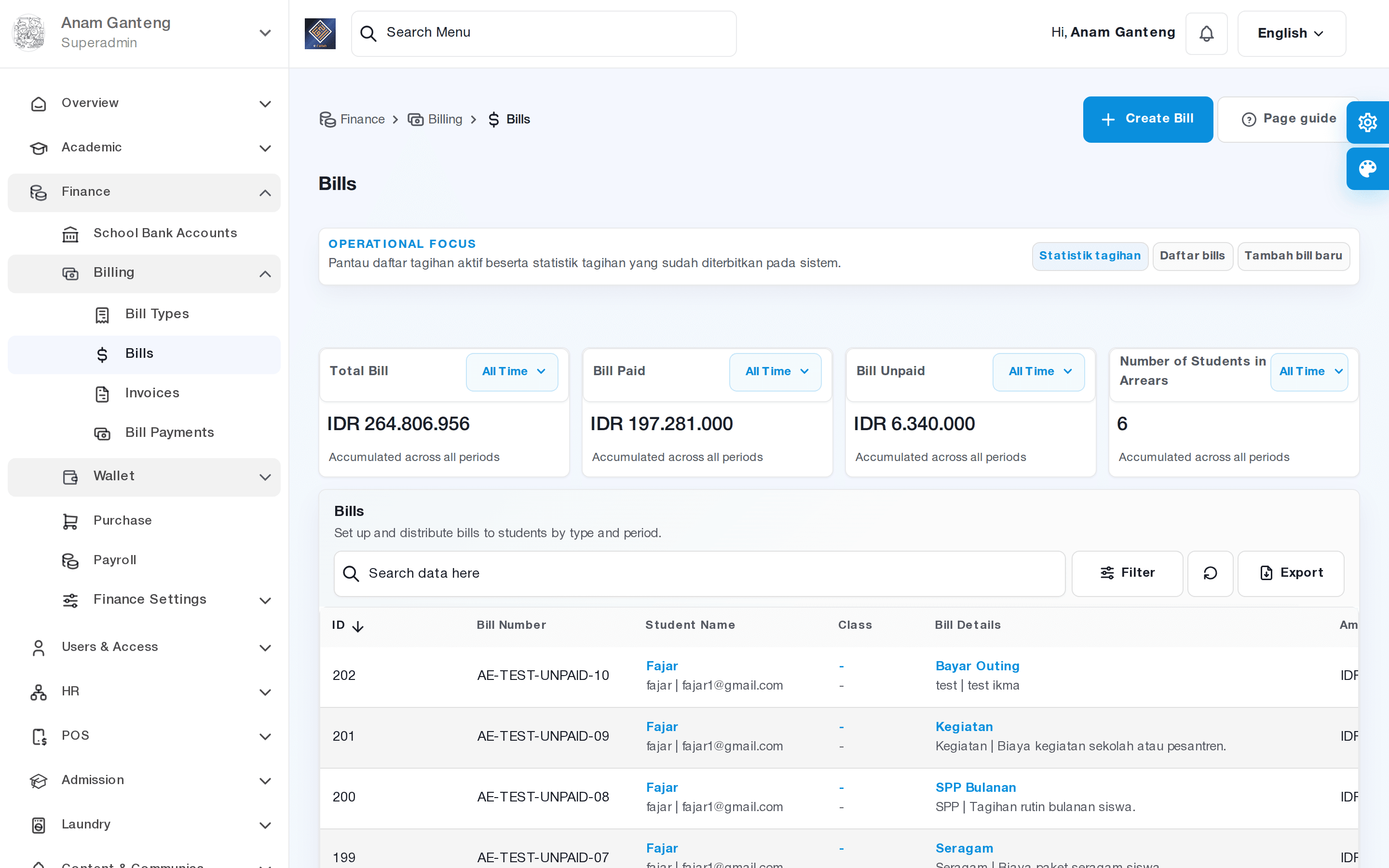
Once your bill types are ready, the next step is issuing the SPP invoices to students. Aerish lets you issue bills in bulk, so you do not have to create them one at a time. Open the Bills menu to begin.
- Open the Bills menu at /admin/bills.
- Choose the create-bill option, then pick a bill type from the master list you created earlier.
- Select the recipients: all students, a specific class, or a specific cohort.
- Set the billing period (for example, the current month) and the due date.
- Review the list of students to be billed, adjust the amount where discounts or scholarships apply, then issue.
This bulk issuance feature saves a lot of time, especially for pesantren with hundreds of students. Every issued bill automatically appears in each guardian's or student's account.
Step 3: Managing Invoices
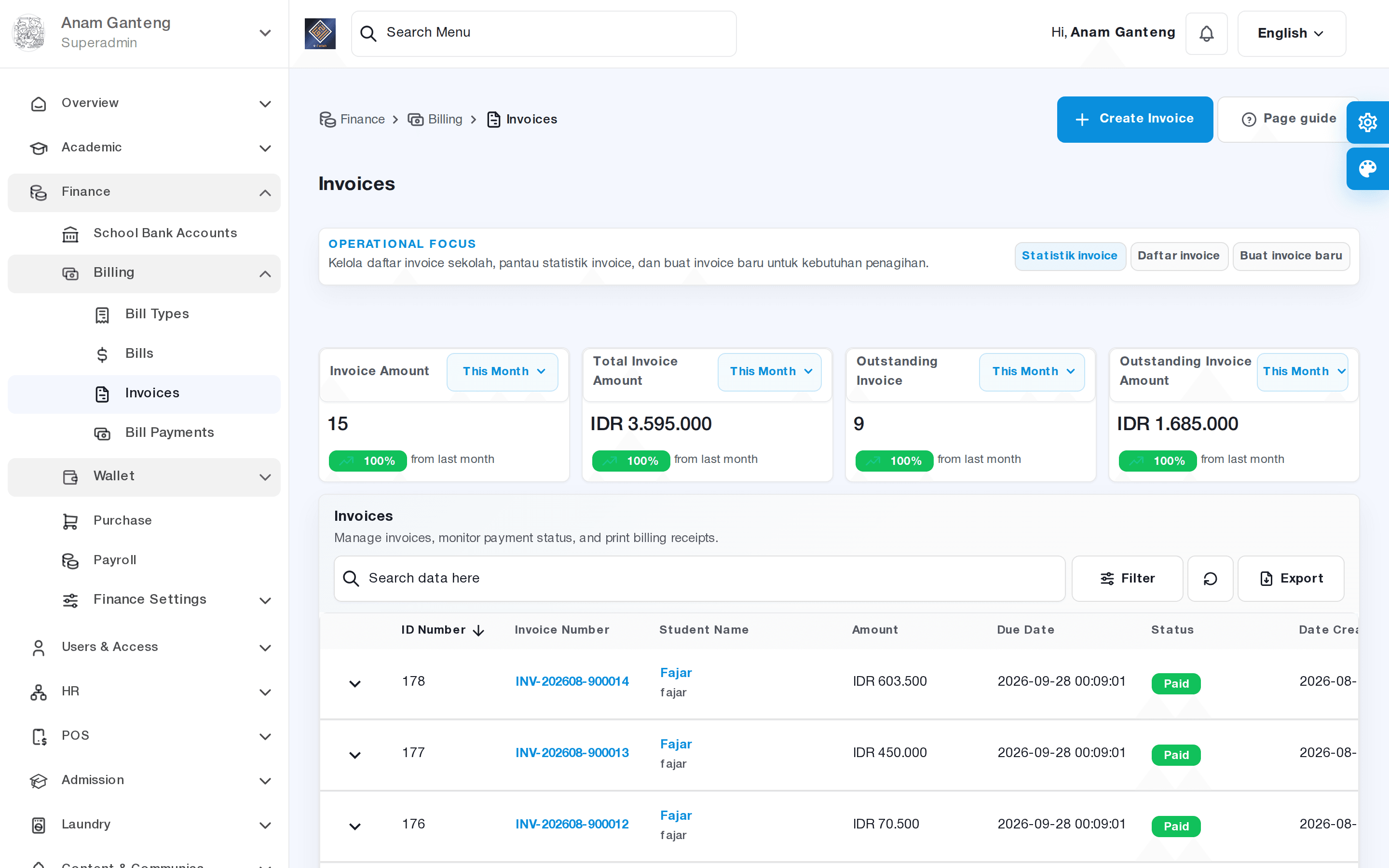
Every issued bill generates a school invoice for the relevant student. The Invoice menu is where you track payment status per invoice: unpaid, partially paid, or fully paid.
- Open the Invoice menu at /admin/invoices.
- Use filters by class, period, or status to find a specific invoice.
- Click an invoice to see the line items, payment history, and remaining balance.
- If needed, print or download the invoice to hand to the student's guardian.
The invoice page gives a full picture of each student's payment obligations, making it easy for the treasurer to answer guardians who ask about their bill status.
Step 4: Recording Bill Payments
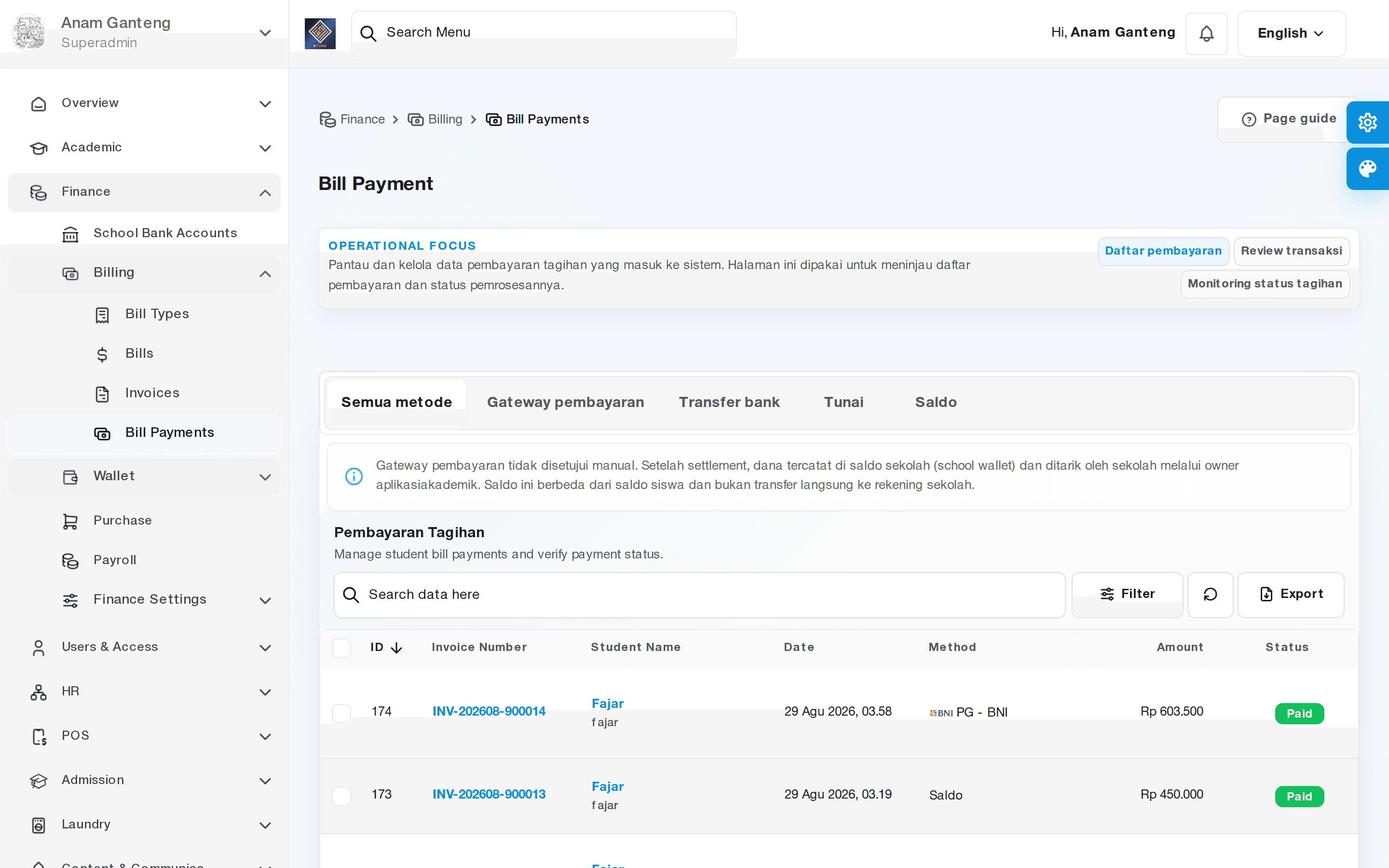
When a student or guardian makes a payment, record the transaction through the Bill Payments menu. Aerish supports two main paths: manual payment entry (cash or transfer verified by the treasurer) and automatic payment via a payment gateway.
Manual payment
- Open the Bill Payments menu at /admin/bill-payments.
- Find the relevant student or invoice.
- Enter the amount paid, the payment method, and the transaction date.
- Save. The invoice status updates automatically to fully paid or partially paid.
Payment via payment gateway
To make things easier for guardians, Aerish can integrate with a payment gateway (for example, Duitku), so guardians can pay directly from the app using a virtual account or another method. Successful payments are recorded automatically without manual entry, reducing the risk of human error. This integration is optional and is usually configured together with the support team.
Step 5: School Accounts and Tracking Arrears
So that transfer and gateway payments are routed correctly, register the receiving account under the School Accounts menu (/admin/rekening-sekolah). You can add more than one bank account to match your budget lines.
To track arrears, use the status filters on the Invoice and Bills menus. By filtering unpaid invoices, the treasurer can compile a list of students to remind. Routine monitoring keeps the pesantren's cash flow healthy and prevents arrears from piling up.
Tips & Best Practices
- Use consistent, easy-to-understand bill type names so your financial reports stay clean.
- Issue SPP bills at the start of the period (for example, the beginning of the month) so guardians have enough time to pay before the due date.
- Take advantage of bulk issuance per class to save time, then adjust manually only for students with discounts.
- Regularly reconcile the payment records in Aerish against the school's bank statements to make sure there are no discrepancies.
- Enable the payment gateway when payment volume is high, because automatic recording is far more accurate than verifying transfers one by one.
Troubleshooting
Here are some common issues finance admins run into, along with their solutions:
- Bill does not appear in the student's account: make sure the recipient target when issuing the bill was correct (class/cohort) and the student is registered active in the current academic year.
- Invoice status does not change to paid after payment: check whether the recorded payment amount matches the invoice total; a partial payment leaves a partially paid status.
- Gateway payment is not recorded: wait a moment, as gateway notifications can sometimes be delayed; if it still does not appear, check the account configuration and contact support.
- Wrong amount on a bulk bill: avoid re-issuing the whole batch; adjust the affected invoices individually, or cancel and re-issue the batch with the correct amount.
FAQ
Can I issue SPP bills for many students at once?
Yes. Through the Bills menu, you can issue bills in bulk per class or per cohort, so you do not have to create them one by one.
How do I track students who are in arrears?
Use the status filter on the Invoice menu to show unpaid invoices. This list becomes the basis for reminding guardians who have not yet paid.
Can guardians pay directly from the app?
Yes, if the payment gateway is enabled. Guardians can pay via virtual account or another method, and successful payments are recorded automatically in the system.
What is the difference between the Bills and Invoice menus?
The Bills menu is used to issue payment obligations, while an Invoice is the per-student document that shows the detail and payment status of those bills.
What if a student has a scholarship or discount?
When issuing a bill or on the invoice page, you can manually adjust the amount for specific students according to the pesantren's discount policy.
Related menus in the app
- Bill Types — define the master bill types such as SPP, building fees, or activities.
- Bills — issue bills in bulk to students per class or cohort.
- Invoice — monitor the detail and payment status of each student invoice.
- Bill Payments — record manual payments as well as payment gateway results.
- School Accounts — manage the accounts that receive student payments.