
Class and Activity Attendance Guide in Aerish Academy
Manage classroom lesson attendance and daily student activity attendance, including config and recap reports.

Student attendance is the backbone of discipline and daily activity monitoring in a pesantren, and Aerish provides two complementary attendance streams: classroom lesson attendance and daily activity attendance. This guide is written for academic admins, homeroom teachers, and supervising staff who manage student attendance every day, from initial configuration and marking presence to attendance recaps and exporting reports. With well-kept student attendance records, a pesantren can track truancy patterns, measure engagement, and connect the data to student coaching through Student Care.
In Aerish, it is important to distinguish the two modules from the start. Class Attendance (lesson attendance per teaching schedule) records student presence in each lesson session according to the teacher's schedule. Meanwhile, Activity Attendance (regular attendance) records presence in non-lesson activities such as congregational prayers, Quran recitation, community work, or extracurriculars. Both use the same student and class data, but they draw from different schedule sources and serve different reporting goals.
Prerequisites
Before you start managing student attendance, make sure the academic data foundation is ready. Here is what you need in place:
- An active academic year is set, and classes are created together with their student rosters.
- Lesson schedules and teacher teaching schedules are already built, because Class Attendance pulls its sessions from the teaching schedule.
- Teacher and supervisor accounts exist and have permission to fill in attendance.
- The list of daily activity types (prayers, recitation, and so on) is planned so it can be set up in the Attendance Configuration menu.
- A basic understanding of the attendance statuses your pesantren uses: Present, Sick, Excused, and Absent (without explanation).
Step 1: Configure Activity Attendance
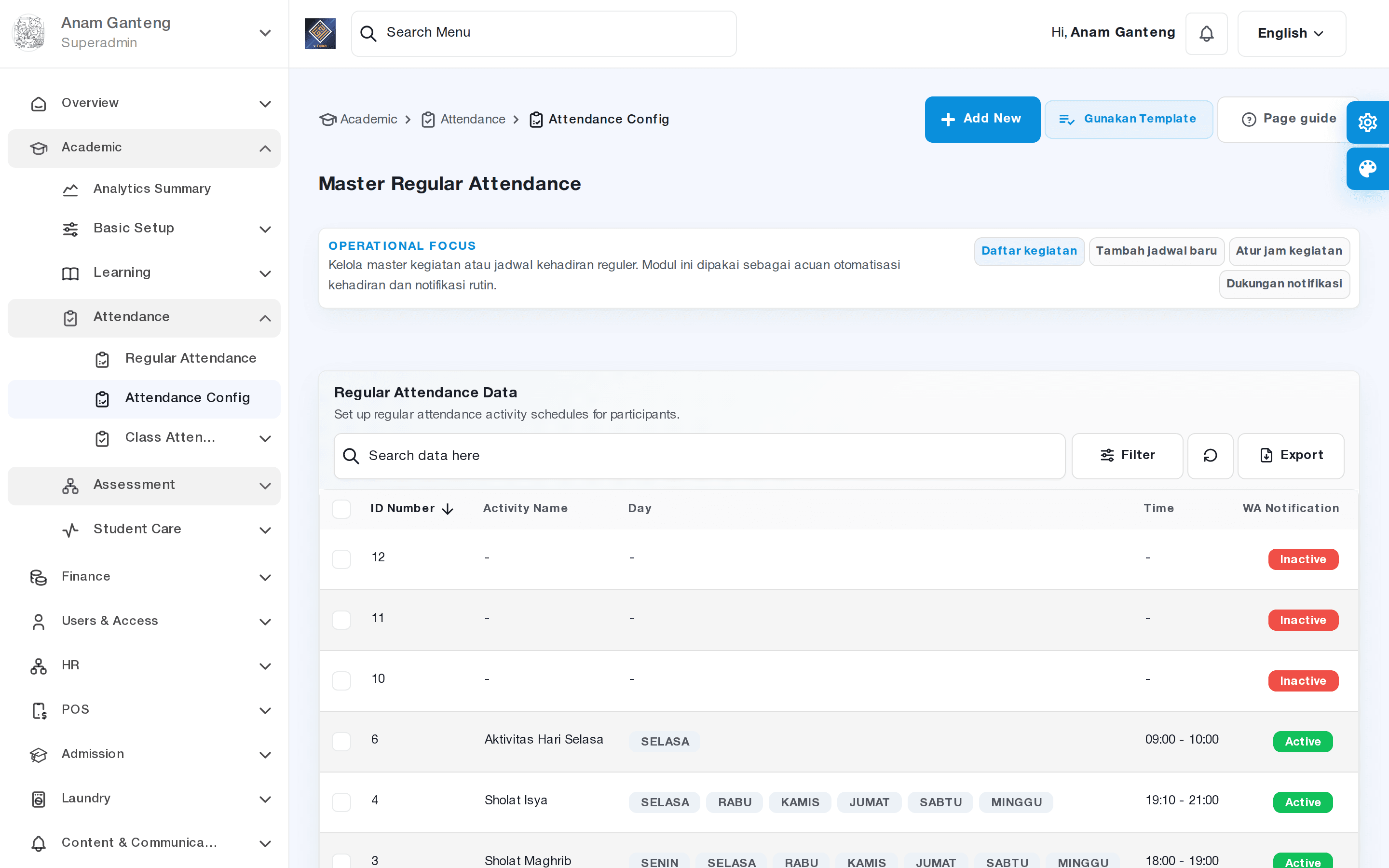
Configuration is the first step for daily activity attendance. Open the Attendance Configuration menu at /admin/master-regular-attendance. Here you define the types of activities that will be attended each day, along with their schedule and person in charge.
- Go to the Attendance Configuration menu and choose to add a new activity type.
- Give the activity a clear name, for example "Dawn Congregational Prayer", "Morning Tahsin", or "Sunday Community Work".
- Set the time or session of the activity (morning, midday, afternoon, evening) so supervising teachers know when to fill it in.
- Define the activity's target, whether it applies to all classes, specific classes, or a particular dormitory.
- Save the configuration. Saved activities appear as daily attendance lists in the Activity Attendance menu.
A well-prepared configuration keeps activity attendance running consistently every day without rebuilding it. You can add or deactivate activity types at any time when the coaching schedule changes.
Step 2: Fill In Class (Lesson) Attendance
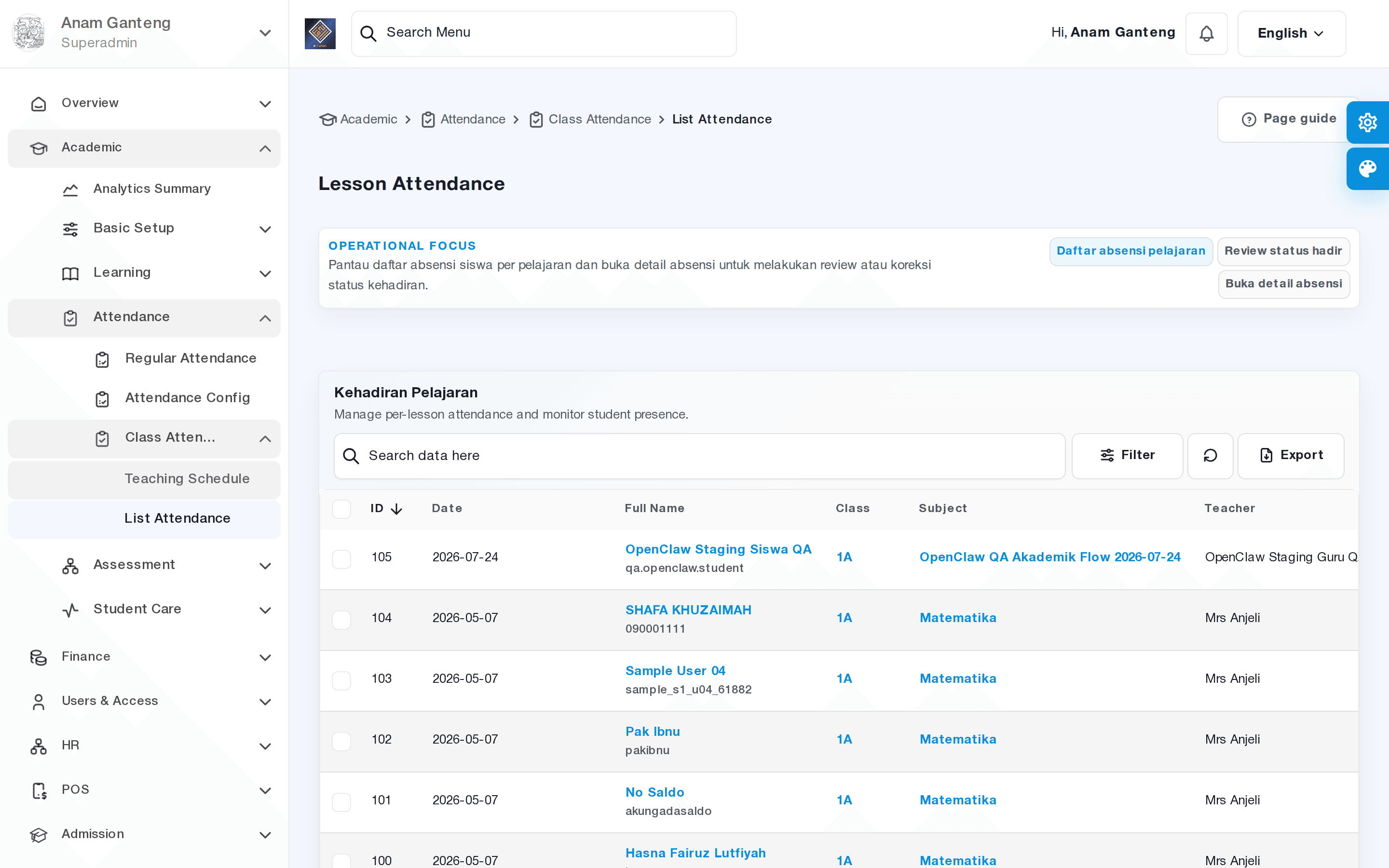
Class Attendance records student presence in each lesson session. This module connects directly to the teacher's teaching schedule, so the list of attendable sessions appears automatically based on the day and time. Open the Class Attendance menu at /admin/lesson-attendance.
- Select the date and lesson session to attend. The system shows the subject, class, and assigned teacher according to the teaching schedule.
- Aerish displays the list of students in that class. By default all students are marked Present, so the teacher only changes those who are absent.
- Mark each student's status: Present, Sick, Excused, or Absent. Add a note when needed, such as the reason for an excused absence.
- Save the attendance. The data is recorded immediately and feeds into the student attendance recap for that lesson.
Because Class Attendance is tied to the teaching schedule, each session is logged with its subject and teacher. This makes it easy to analyze attendance per lesson rather than just general daily presence.
Step 3: Fill In Daily Activity Attendance
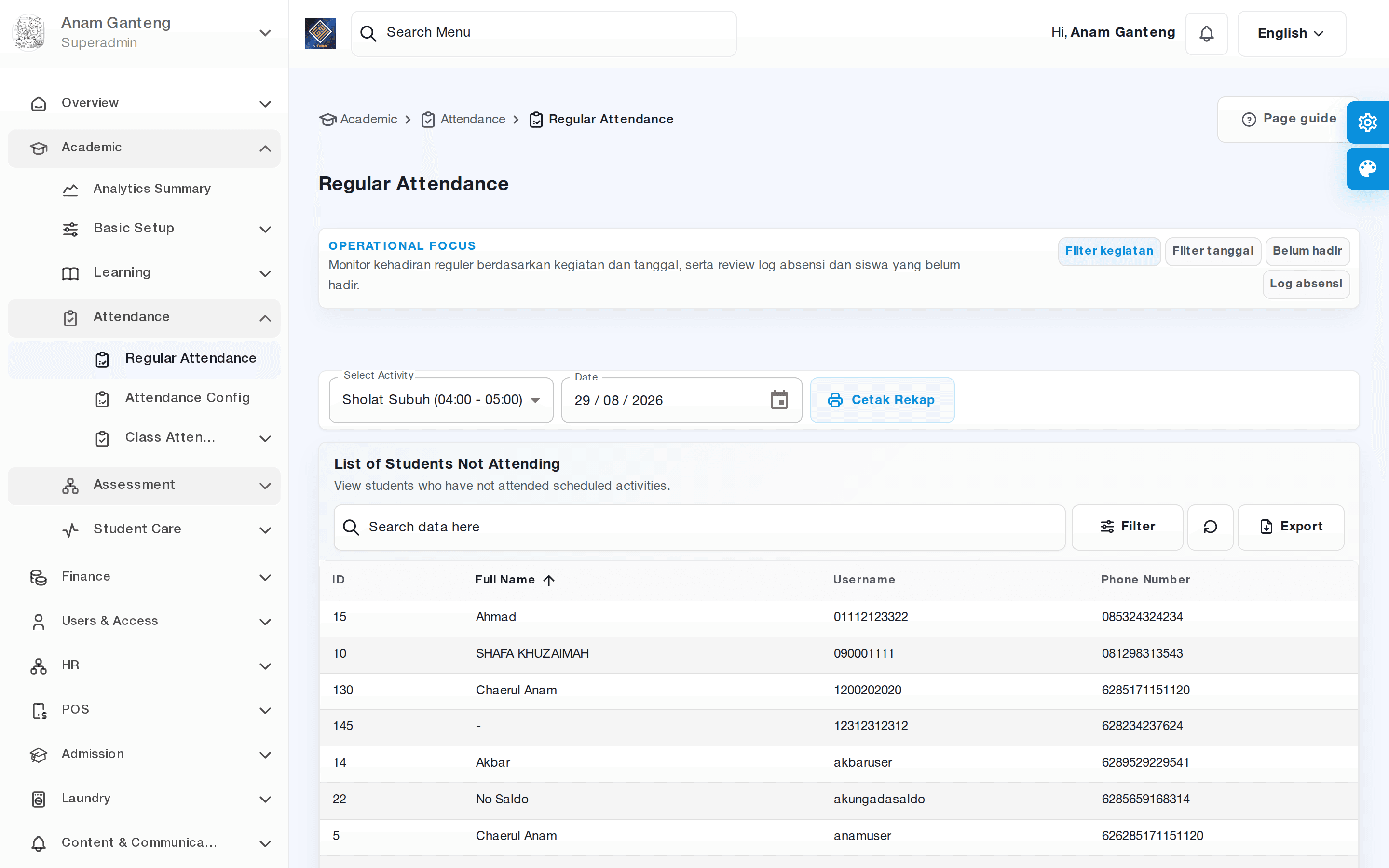
Once activity types are configured, supervising teachers can fill in attendance through the Activity Attendance menu at /admin/regular-attendance. This module suits recurring activities outside formal lesson hours.
- Open the Activity Attendance menu and select the date and the activity type you configured earlier.
- Choose the class or student group that is the target of that activity.
- Mark each student's presence just like in Class Attendance: Present, Sick, Excused, or Absent.
- Save. The activity attendance recap accumulates automatically per student and per activity type.
Activity Attendance is very useful for monitoring worship discipline and dormitory engagement. This data becomes important input for dormitory supervisors and the coaching team.
Step 4: Recap and Export Attendance
The real power of student attendance records lies in the recap. Both Class Attendance and Activity Attendance provide attendance recaps that can be filtered by date range, by class, by subject, or by activity type.
- Open the relevant attendance menu, then choose the recap or report view.
- Apply filters: pick the class, the date range (weekly, monthly, or per semester), and the attendance type.
- Review the summary of Present, Sick, Excused, and Absent counts for each student.
- Export the recap to an available format for archiving or as material for meetings with guardians.
The attendance recap helps homeroom teachers spot frequently absent students early. Attendance percentage can also serve as one indicator in attitude assessment and coaching.
Step 5: Linkage with Violations and Student Care
Attendance does not stand alone. When a student is repeatedly Absent without explanation, the homeroom teacher can follow up as a violation record through the Student Care module. This flow closes the coaching loop: from detecting absence, verifying the reason, to assigning violation points or coaching action.
Conversely, a student on an official permit (for example an exit permit recorded in Student Care) should be marked Excused, not Absent, so the attendance recap stays fair and accurate. Aligning attendance data with Student Care permits prevents misunderstandings and preserves the credibility of your reports.
Tips & Best Practices
- Set uniform status definitions for all teachers: when a case counts as Excused and when it counts as Sick, so recaps stay consistent.
- Encourage teachers to fill in class attendance right after each session ends so the data is accurate and does not pile up.
- Configure activity types once at the start of the semester, then review periodically when the coaching schedule changes.
- Use the note field on Excused/Sick statuses to record a brief reason; this helps greatly during recaps and communication with guardians.
- Run a weekly attendance recap so absence trends are detected quickly before they become bigger problems.
Troubleshooting
- Lesson sessions do not appear in Class Attendance. Recheck the teacher's teaching schedule in the schedule module. Class Attendance only shows sessions already registered in the teaching schedule.
- Activity types do not show up in Activity Attendance. Make sure the activity type is created and active in Attendance Configuration, and that its target class or dormitory is correct.
- A teacher cannot save attendance. Check that teacher account's permissions. Some attendance actions require access rights set in access control.
- A student on an official permit is counted as Absent. Change the status to Excused and align it with the permit record in Student Care.
- The recap does not match expectations. Check the date and class filters in use; the wrong date range is the most common reason a recap looks empty.
FAQ
What is the difference between Class Attendance and Activity Attendance?
Class Attendance records presence per lesson session following the teacher's teaching schedule, while Activity Attendance records presence in daily non-lesson activities such as prayers, recitation, or community work configured in Attendance Configuration.
Who fills in student attendance?
Usually the assigned teacher fills in Class Attendance according to the teaching schedule, while supervising teachers or dormitory supervisors fill in Activity Attendance. It all depends on the permissions granted by the admin.
Can the attendance recap be exported?
Yes, the attendance recap can be filtered by class and date range and then exported for archiving, meetings, or reports to student guardians.
What happens if a student is often Absent?
Repeated absence without explanation can be followed up as a violation through the Student Care module, so attendance connects directly to the student coaching process.
Does attendance data affect assessment?
Attendance percentage is often used as an indicator of discipline and attitude assessment. That is why consistent entry and accurate attendance statuses are very important.
Related menus in the app
- Absensi Kelas — records student presence per lesson session according to the teacher's teaching schedule.
- Absensi Kegiatan — fills in student presence for daily activities such as worship and extracurriculars.
- Konfigurasi Absensi — defines daily activity types, their schedule, and their target classes.