
Digital Wallet and Student Savings Guide in Aerish
Manage student balances, top-ups and withdrawals, savings mutations, term savings, and the school wallet.
The digital wallet and student savings features in Aerish let your pesantren operate cashless: every student has a balance they can use to pay at the canteen, cooperative store, and dormitory services without carrying cash. This guide is written for finance admins and pesantren operators who are responsible for managing student balances, processing top-ups and withdrawals, monitoring savings mutations, and running term savings programs.
With a digital wallet system, your pesantren can reduce the risk of lost money, make it easier for guardians to send pocket money, and keep clean, auditable transaction records. All of these features center on the school wallet as the master cash account, which then flows down to each student's balance. Let us walk through how to set everything up in the Aerish app, step by step.
Prerequisites
Before you start managing the digital wallet and student savings, make sure the following are ready:
- An admin account with access to the Finance and Digital Wallet modules (RBAC configured for your role).
- Student data already registered in the app, since every balance is attached to a student profile.
- A school bank account or top-up method already configured so incoming funds can be reconciled.
- Agreed internal policies on transaction limits, withdrawal caps, and the approval flow.
- Optional: student cards or RFID prepared if you want canteen (POS) payments to use cards.
Understanding the School Wallet as the Central Cash Account
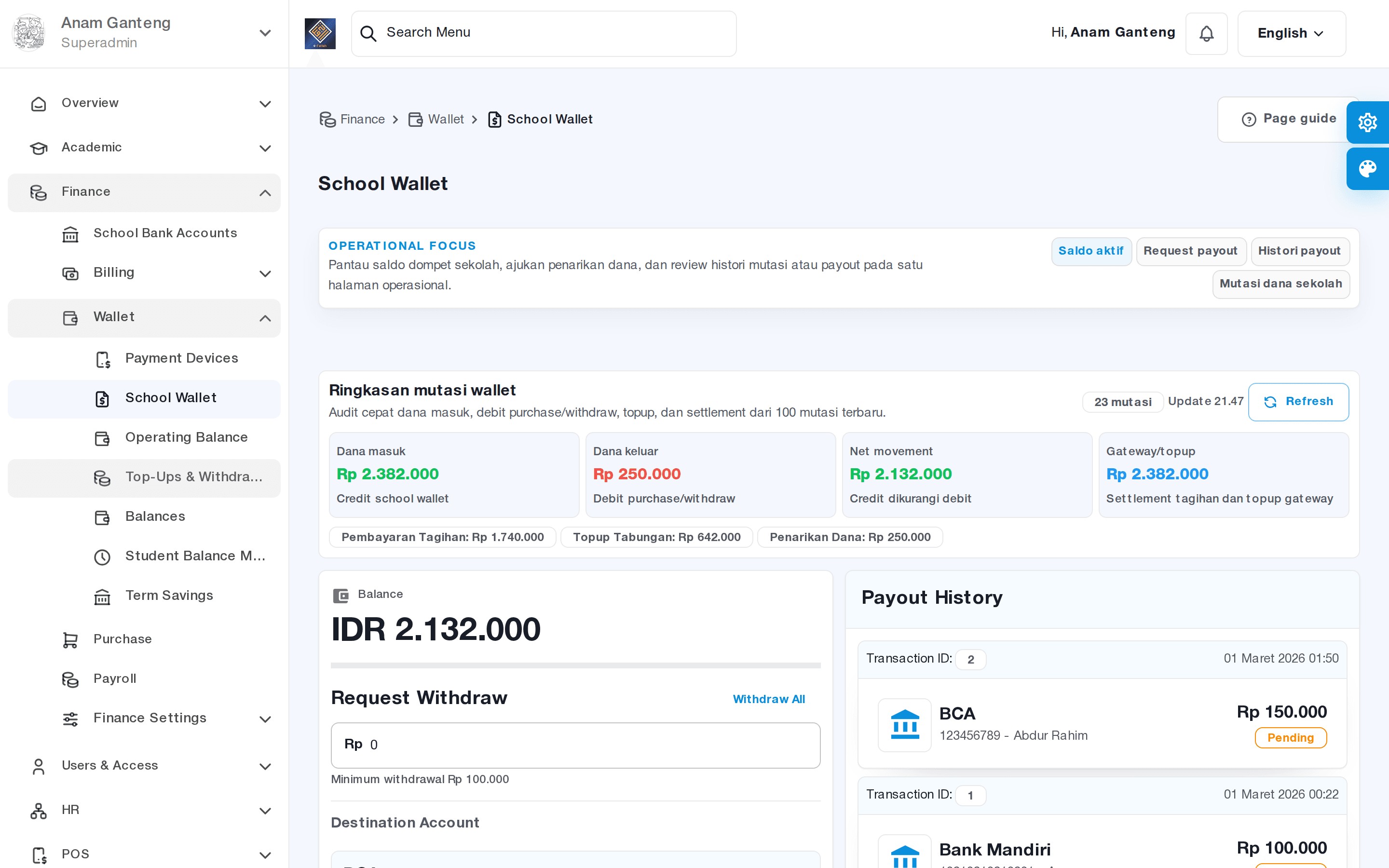
The school wallet is the heart of the entire cashless system. All student balances logically originate from this master account, and every top-up or withdrawal is reflected in the school wallet's cash flow. Understanding the school wallet first will make it much easier to reconcile the total circulating balance with the real cash your pesantren holds.
- Open the School Wallet menu at
/admin/school-wallet. - Review the central cash balance and the summary of total funds circulating across all student balances.
- Check the history of incoming funds (top-ups) and outgoing funds (withdrawals) to confirm the numbers match your bookkeeping.
- Use this page as a daily control point before closing your cash books.
Managing Student Balances
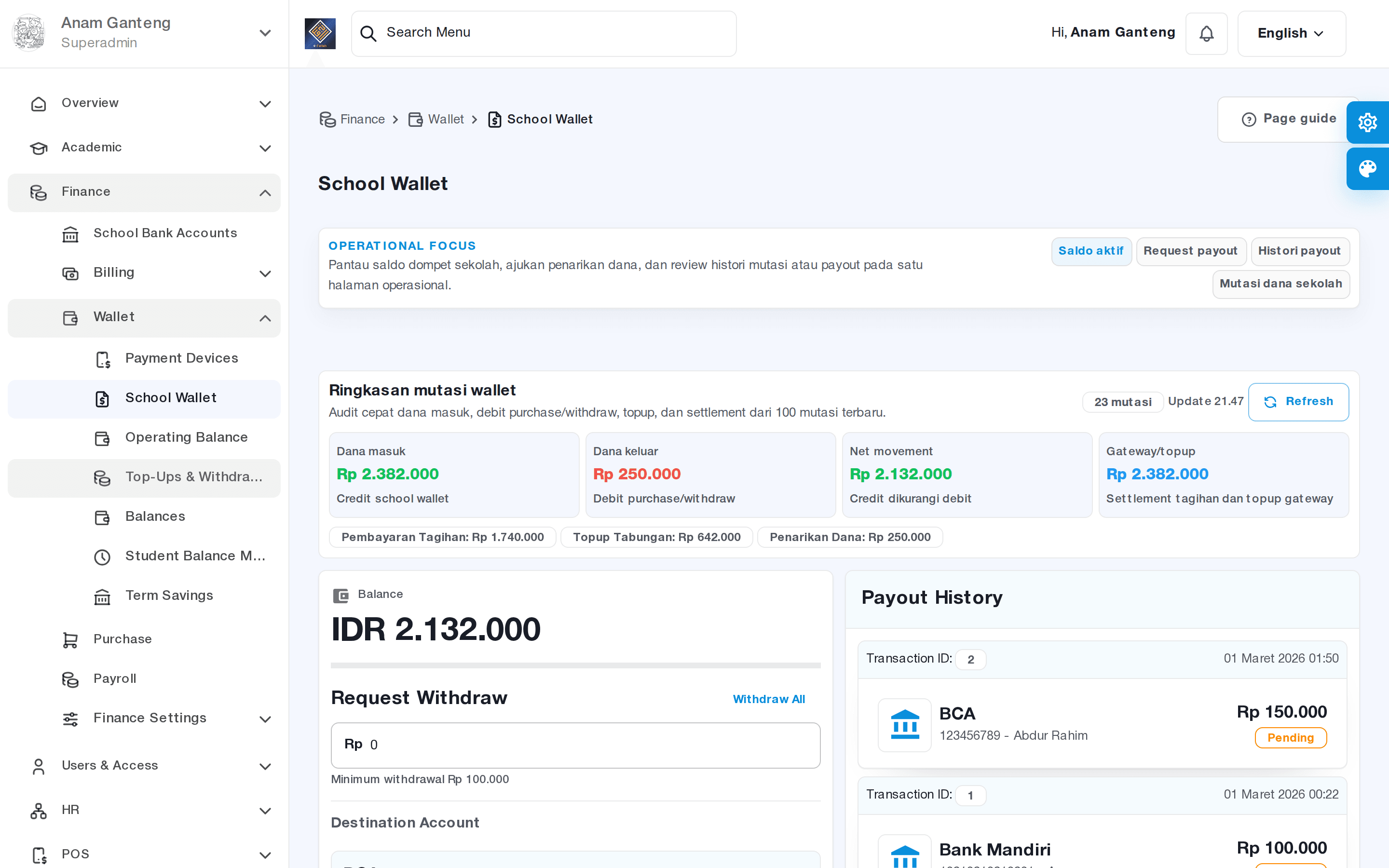
Every student has a personal balance that funds cashless payments. Through the Student Balance menu, admins can view balance positions, search for a specific student, and monitor who is running low.
- Open the Student Balance menu at
/admin/balance. - Search for a student by name, class, or student ID to see their current balance.
- Click a student to open the detail view and review their most recent transactions.
- Watch for students with zero or negative balances so guardians can be reminded to top up.
Processing Top-Ups and Withdrawals
The Top-Up & Withdraw menu is where admins add funds to a student's balance (top-up) or cash out a balance (withdrawal). The approval flow keeps every transaction recorded and valid.
Adding Funds (Top-Up)
- Open the Top-Up & Withdraw menu at
/admin/topup-withdraw. - Select the target student, then enter the top-up amount matching the money received from the guardian.
- Choose the incoming-fund method (cash at the counter or transfer via the school bank account).
- Confirm and save. The student's balance increases and the school wallet is recorded as having received the funds.
Withdrawing Funds (Cash Out)
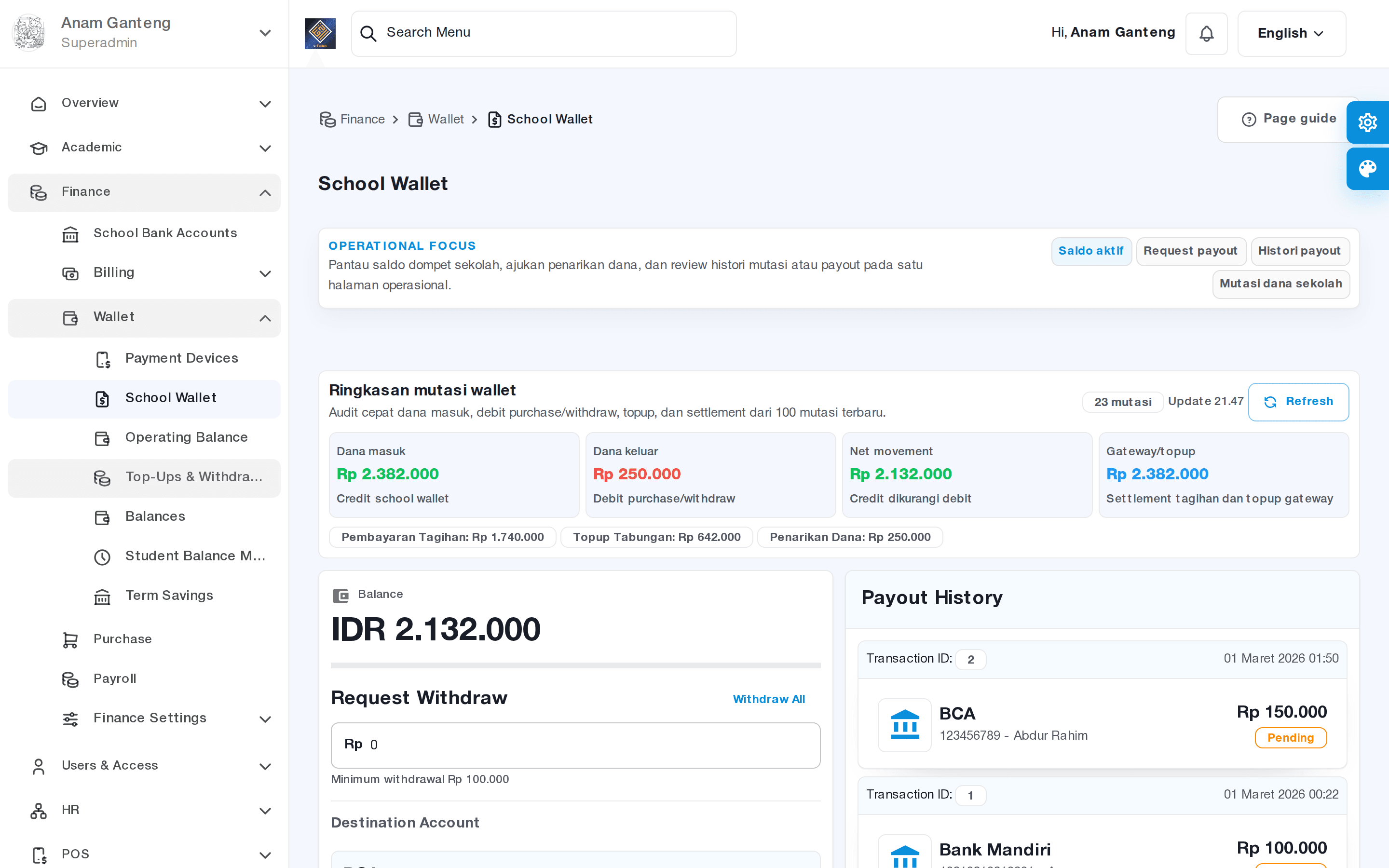
- Still in the Top-Up & Withdraw menu, open the withdrawal tab.
- Select the student and enter the amount to withdraw, respecting the applicable limits and withdrawal caps.
- Run the approval process according to your pesantren's policy; some institutions require two-step verification.
- Hand the cash to the student or guardian, then mark the transaction as completed.
Monitoring Savings Mutations
Savings mutations are the complete history of every balance movement: top-ups, withdrawals, and payments (for example, canteen transactions through the POS). This menu is essential for audits and for answering guardians' questions about where the pocket money went.
- Open the Savings Mutations menu at
/admin/savings-data. - Filter by student, date range, or transaction type.
- Drill into each row to see the timestamp, amount, and transaction description.
- Export the data when needed for monthly reports or reconciliation with your bookkeeping.
Running Term Savings
Beyond the daily balance, Aerish supports term savings to help students build a habit of saving toward a specific target and period, such as holiday savings or savings for supplies. This feature helps your pesantren nurture students' financial literacy.
- Open the Term Savings menu at
/admin/term-savings. - Create a new term savings program, defining its name, target amount, and duration.
- Enroll participating students and set up recurring deposits as agreed.
- Monitor progress toward the target and process disbursement when the period ends.
Tips & Best Practices
- Set reasonable transaction limits and daily withdrawal caps to prevent misuse of balances.
- Reconcile the School Wallet every day so the total student balance always matches real cash.
- Apply a layered approval flow for large withdrawals to strengthen security.
- Use student cards or RFID so canteen payments through the POS are faster and free of input errors.
- Educate guardians on how to send pocket money so top-ups land on the correct student's balance.
- Leverage term savings as a financial-education tool, not merely a place to store funds.
Troubleshooting
- Top-up does not appear in the student balance. Confirm the correct student was selected and the transaction was saved; check Savings Mutations to verify the record.
- Withdrawal rejected by the system. This usually means the limit was exceeded or the balance is insufficient; check the limit policy and current balance in the Student Balance menu.
- Discrepancy between the School Wallet and physical cash. Trace the mutations for the relevant date range and match every top-up and withdrawal against payment evidence.
- Canteen payment fails. Check whether the student's balance is sufficient and that the card/RFID is linked to the correct profile.
- A student cannot find their transaction history. Direct them to their mutations; admins can help trace details through Savings Mutations.
FAQ
What is the difference between the School Wallet and Student Balance?
The School Wallet is the pesantren's central cash account holding all cashless funds, while the Student Balance is the portion each student owns for transactions. In aggregate, all student balances are reflected in the School Wallet.
How do guardians top up a balance?
Guardians can deposit cash at the counter or transfer via the school bank account, then the admin processes the top-up in the Top-Up & Withdraw menu so the funds land on the correct student's balance.
Can a student's balance be used to pay at the canteen?
Yes. The student balance is connected to the canteen and cooperative POS system, so payments can be made cashless, including using a student card or RFID.
What are the benefits of term savings for students?
Term savings builds the habit of saving toward a specific target and period, so students learn financial discipline while preparing funds for specific needs.
How can I audit all student transactions?
Use the Savings Mutations menu, which records every top-up, withdrawal, and payment. Data can be filtered by student or date and exported for reporting.
Related menus in the app
- School Wallet — the central cashless account for monitoring total circulating funds and cash flow.
- Student Balance — view and manage each student's personal balance.
- Top-Up & Withdraw — process balance top-ups and cash withdrawals with an approval flow.
- Savings Mutations — the complete history of all student savings transactions for auditing.
- Term Savings — manage goal-based saving programs over a defined period.