
Digital Student Laundry Service Guide in Aerish App
Manage student laundry orders, service types and pricing, complaints, and the laundry dashboard in Aerish.

The student laundry service is one of the busiest daily operations in a boarding-school dormitory, and the pesantren laundry module in Aerish helps you turn a manual, notebook-based process into a clean digital workflow. This guide is written for dormitory admins, laundry staff, and cooperative operators who are responsible for receiving, processing, and handing back students' laundry every day.
With the Aerish laundry module, every laundry order is recorded together with its owner, service type, weight or item count, work status, and automatic payment from the student's balance. Guardians and students no longer need to carry cash, while staff get a transparent recap. Follow the steps below so your dormitory service runs in an orderly way from day one.
Prerequisites
Before you start managing orders, prepare a few things so the whole flow runs smoothly:
- An admin or laundry operator account that already has access to the Laundry menu.
- Active student data for the current academic year so orders can be linked to the laundry owner.
- Active student wallet balances if you want payments to be deducted automatically from savings.
- A list of service types and pricing agreed by the management, for example wash-by-weight, wash-per-item, or iron-only.
- A cashier device or computer/tablet with an internet connection to access the Laundry Dashboard.
Step 1: Configure Service Types and Pricing
A tidy laundry service starts with settings. Open the Laundry Settings menu at /admin/laundry/settings to define service types and pricing before accepting your first order.
- Go to the Laundry Settings menu.
- Add service types, for example "Wash by Weight", "Wash per Item", "Wash & Iron", or "Iron Only".
- Set the pricing unit (per kilogram or per item) and enter the price.
- Set an estimated turnaround, for example 24 hours or 48 hours, so students know when laundry is ready.
- Save the configuration. These rates will appear automatically when you create a new order.
Keep service-type naming consistent so recaps and reports stay easy to read. Align pricing with your pesantren cooperative policy, and review it periodically whenever operating costs change.
Step 2: Creating and Managing Laundry Orders
Once pricing is ready, all daily transactions revolve around the Laundry Orders menu at /admin/laundry/orders. This is where staff record every load of laundry received from students.
- Open the Laundry Orders menu and click the button to create a new order.
- Select the student who owns the laundry from the list. Student data is linked automatically, so there is no need to retype names and classes.
- Choose the service type you configured earlier.
- Enter the weight (for by-weight service) or the item count (for per-item service). The total cost is calculated automatically.
- Add a note if needed, for example "ink stain present" or "wash separately".
- Save the order. The system assigns an order number and marks its status as Received.
Digitally recorded laundry orders make tracking effortless. Staff never have to guess whose laundry is whose because every order is already tied to a student identity.
Step 3: Status Flow from Received to Picked Up
Every laundry order moves through several status stages. Updating statuses diligently lets students and staff know where each load is at any time.
- Received — new laundry has been taken in and recorded but not yet worked on.
- In Process — laundry is being washed, dried, or ironed. Change the status to In Process so it shows as being handled.
- Done — the work is finished and laundry is ready for pickup. At this stage the student can be notified.
- Picked Up — the student has collected the laundry. The order is closed and recorded as fully complete.
Update statuses directly from the order list in the Laundry Orders menu. An orderly status flow prevents complaints such as "lost laundry" or "not done even though it's been a while".
Step 4: Payment via Student Balance
One advantage of this module is cashless payment. Laundry costs can be deducted directly from the student's digital wallet balance, so no cash changes hands in the dormitory area.
- When an order is created or completed, choose payment via the student balance.
- The system checks the balance and automatically deducts the service fee.
- The transaction is recorded in the student's savings mutations so guardians can monitor spending.
- If the balance is insufficient, the order can be marked unpaid and completed after the student tops up.
This method preserves financial transparency and reduces the risk of losing cash. Make sure students keep enough balance so payment runs smoothly.
Step 5: Handling Complaints
No service is perfect, so Aerish provides the Complaints menu at /admin/laundry/complaints to record and follow up on student issues such as mixed-up laundry, color bleeding, or missing items.
- Open the Complaints menu to see the list of incoming complaints.
- Read the complaint details, including the related order and the reporting student.
- Follow up by rewashing, replacing, or providing an explanation, then update the complaint status.
- Mark the complaint as resolved once the issue is handled so the recap stays clean.
Handling complaints on record demonstrates professionalism in your dormitory service and helps you spot recurring problems that need fixing.
Step 6: Monitoring via the Laundry Dashboard
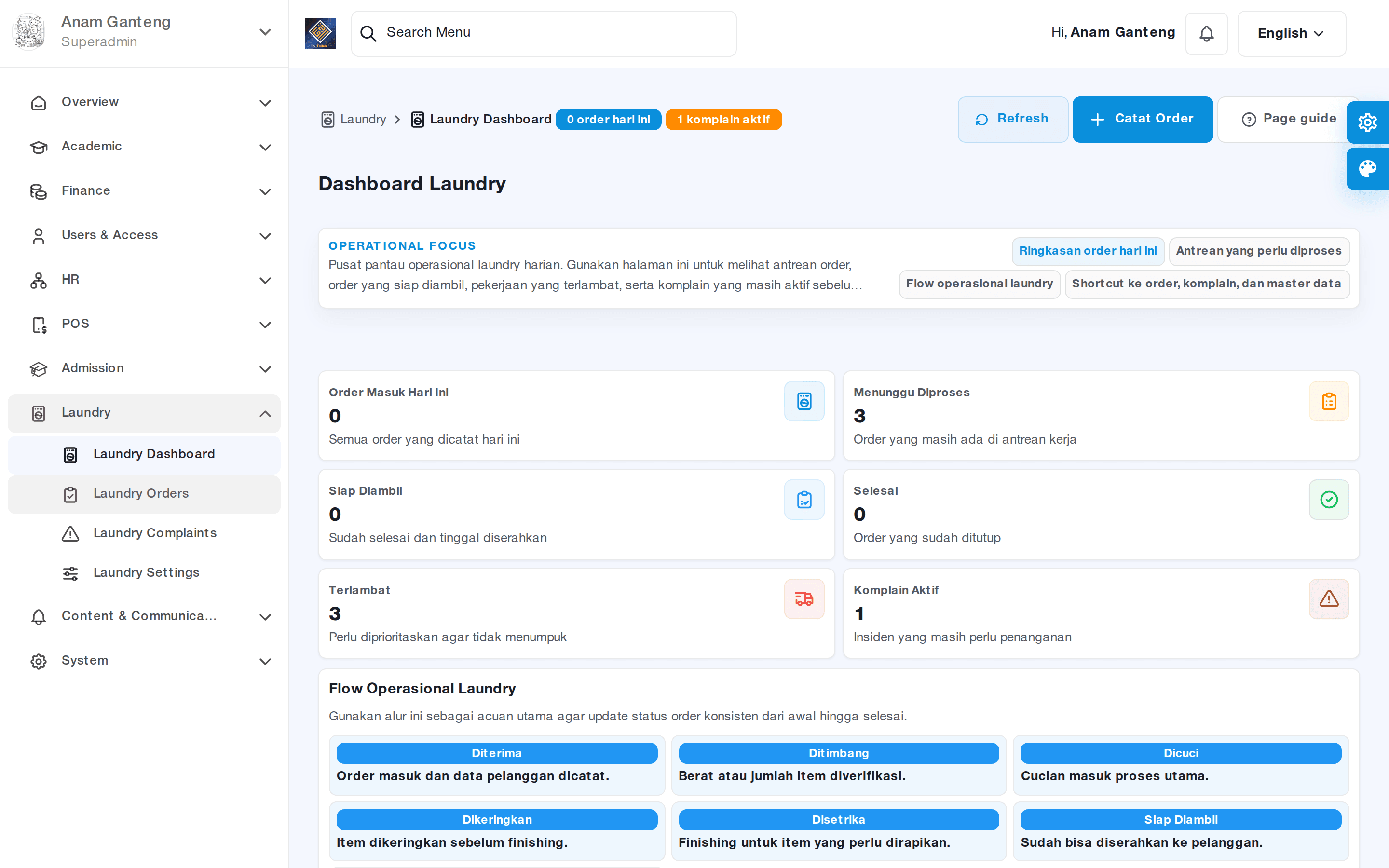
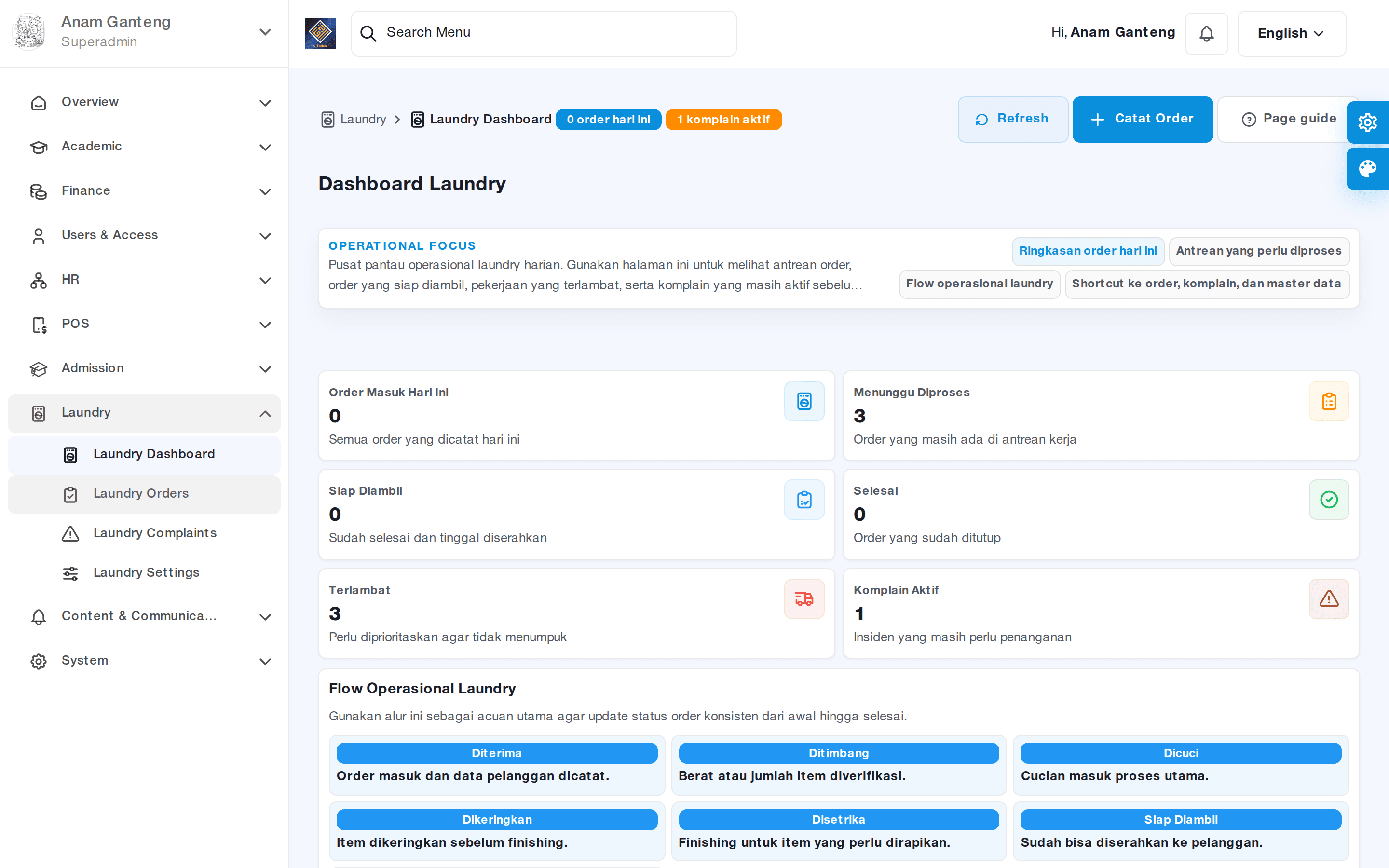
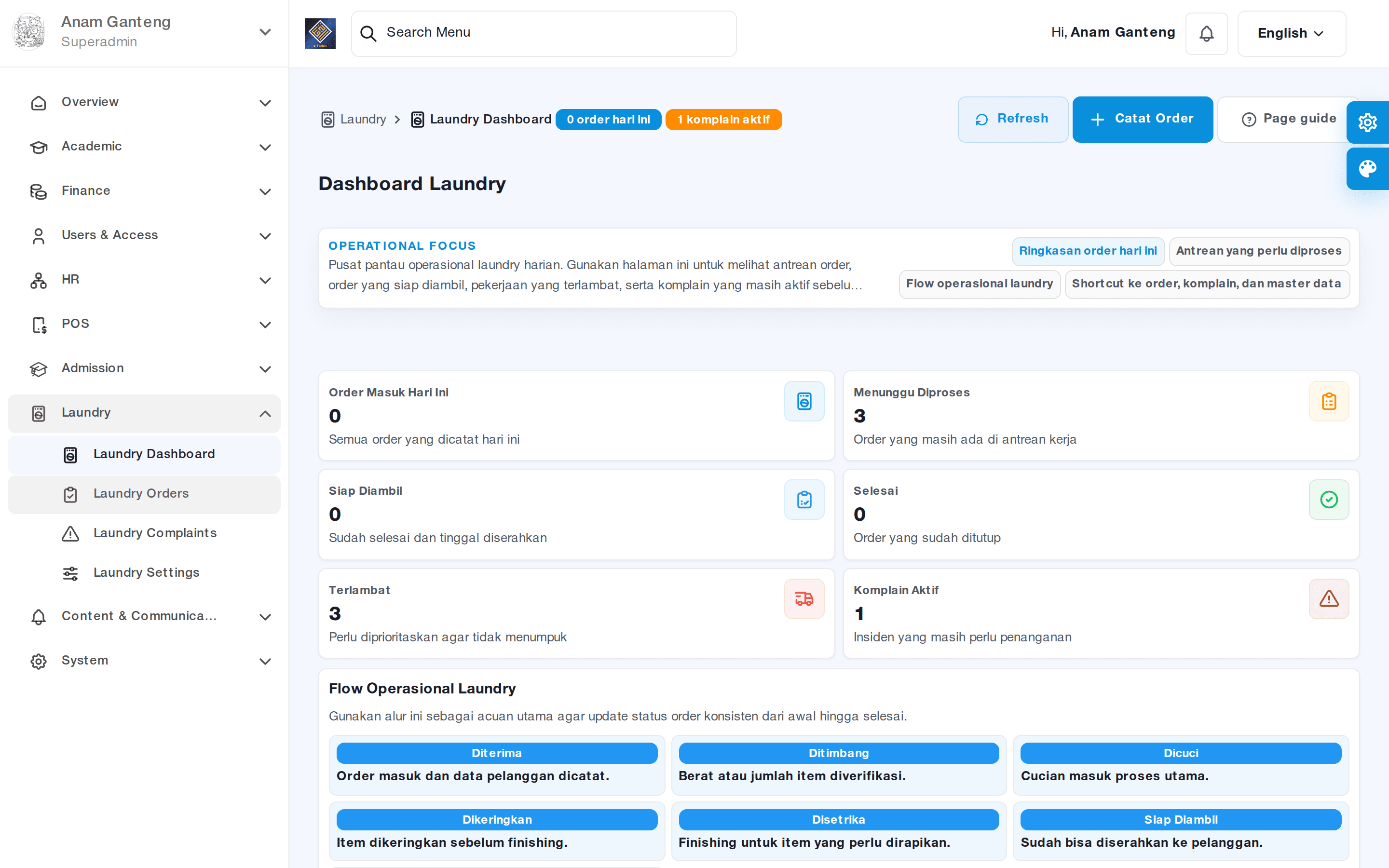
To see the big picture of operations, open the Laundry Dashboard at /admin/laundry. The dashboard presents a summary of orders received, in process, done, and picked up, so staff can monitor the daily workload.
Use the dashboard to evaluate trends, for example the busiest day of the week or the most requested service types. This data is useful when scheduling staff and setting future pricing policies.
Tips & Best Practices
- Update order statuses in real time so students don't have to keep asking about their laundry.
- Use consistent service-type names to make recaps and reports easier.
- Encourage students to always keep enough balance so cashless payment runs smoothly.
- Put a physical label or order number on laundry bags to match the digital record.
- Review complaints periodically to find root causes, not just to close cases one by one.
- Add extra staff on busy days based on dashboard data.
Troubleshooting
Here are some common issues and how to resolve them:
- Order cannot be paid via balance — check the student's digital wallet balance; if it is short, ask the student to top up first.
- Student name does not appear when creating an order — make sure the student is active in the current academic year.
- Pricing does not appear — recheck the Laundry Settings menu; the service type may not be saved or may be disabled.
- Orders pile up in "In Process" — get staff into the habit of closing statuses to Done and then Picked Up so the dashboard stays accurate.
- Repeated complaints on the same service — evaluate the washing procedure and consider retraining staff.
FAQ
Does laundry payment have to go through the student balance?
It is not mandatory, but strongly recommended. Paying via the digital wallet keeps the dormitory area cash-free and every transaction is automatically recorded in the student's savings mutations, making it more transparent.
How do students know their laundry is done?
When staff change the order status to Done in the Laundry Orders menu, students can find out through a notification or by checking the status themselves. Make sure statuses are always updated on time.
Can I add a new service type at any time?
Yes. Open the Laundry Settings menu, add a new service type and price, then save. The new service is immediately available when creating the next order.
What happens when a student files a complaint?
The complaint appears in the Complaints menu and you can follow up by rewashing, replacing, or providing an explanation. Once resolved, mark the complaint as done so the recap stays tidy.
Can I see total laundry revenue?
An operational summary is available on the Laundry Dashboard, including the number of orders per status. For detailed cash flow, payment transactions are also recorded through the student balance mutations in the digital wallet module.
Related menus in the app
- Dashboard Laundry — a summary of received, in-process, done, and picked-up orders for daily monitoring.
- Order Laundry — create, manage, and update the status of every student laundry order.
- Komplain — record and follow up on student complaints about the laundry service.
- Pengaturan Laundry — set service types, pricing, and estimated turnaround times.