
Point of Sale Guide for Pesantren Canteen in Aerish
Run the POS cashier, manage products and stock, cashier shifts, vouchers, and canteen sales analytics.

The pesantren POS system in Aerish helps you run a canteen cashier and student cooperative neatly, quickly, and cashless inside a single app. This guide is written for finance admins, cooperative managers, and canteen cashier operators who want to record every sale, manage stock, and monitor revenue without a separate cash register. Because payments use the student's balance or card, transactions become safer since students no longer need to carry cash.
We will walk through the complete flow: opening a cashier shift, processing sales transactions, building the product catalog and prices, managing inventory and stock movements, applying vouchers and member points, and reading the sales analytics dashboard. Every step refers to the real menu in the app so you can follow along with Aerish open.
Prerequisites
Before you start running the canteen cashier, make sure the following are ready:
- Your account has access to the POS module (cashier, products, inventory, shifts, and dashboard).
- The digital wallet and student balance system is active if you want to accept cashless payments via balance or card.
- You have gathered the canteen/cooperative product list with selling prices (name, category, price, and starting stock).
- Your cashier device is ready: a computer or tablet with a browser, and optionally a receipt printer and a student card/RFID reader.
- Cooperative policies are agreed, such as daily transaction limits per student, member discounts, and the points scheme.
Setting Up the Product Catalog and Prices
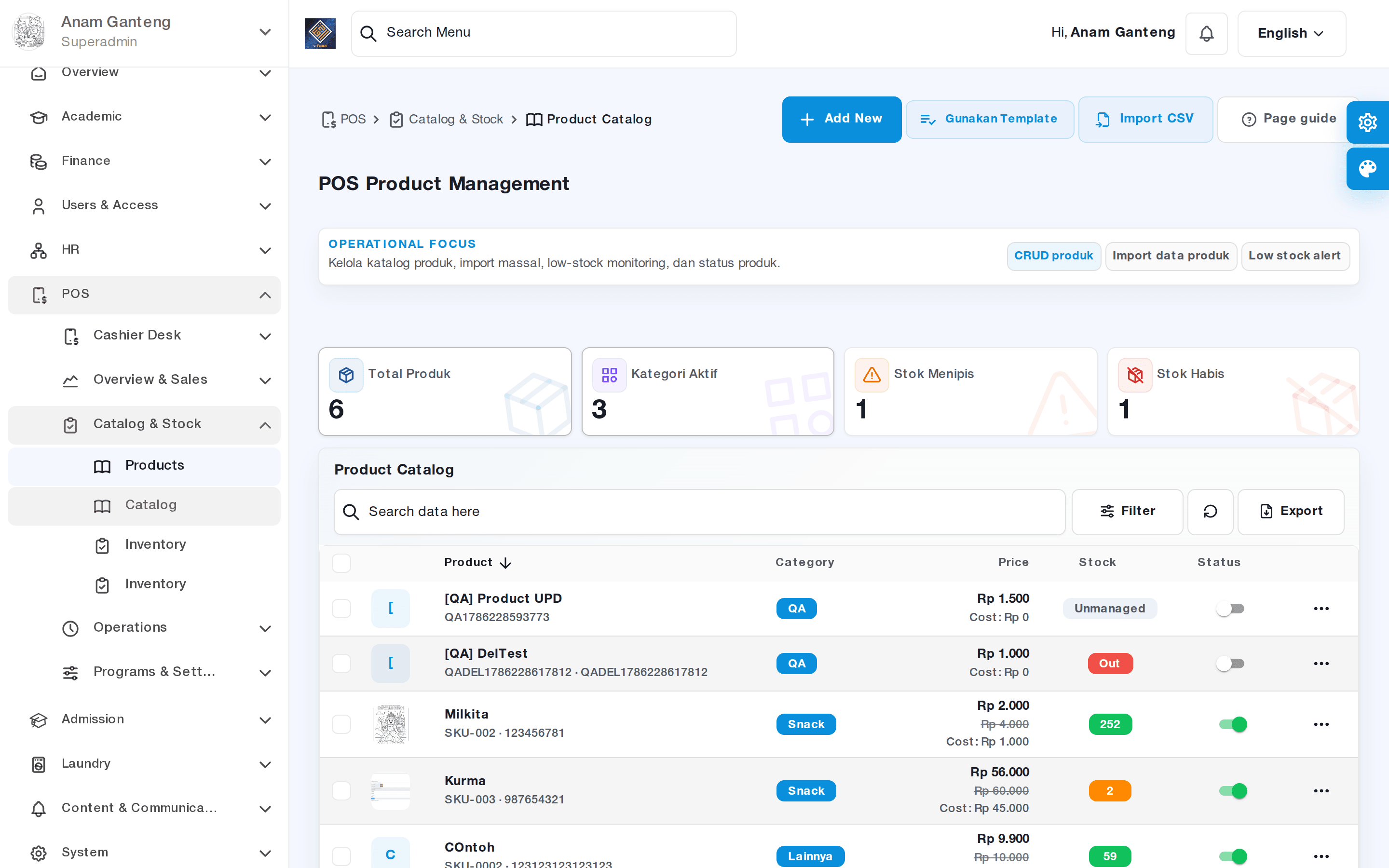
The first step before selling is entering your products. Open the Products menu at /admin/pos/products to build the catalog for the canteen and student cooperative.
- Click add product, then fill in the product name, category (for example food, drinks, stationery, toiletries), and unit.
- Set the selling price. If the cooperative applies a special member price, record it according to your policy.
- Enter the starting stock and a minimum stock threshold so the system can alert you when items run low.
- Upload a product photo if available so cashier operators can find items faster.
- Save. Repeat for all products, or group them by category so searching at the register is easier.
Organize categories consistently from the start. A tidy catalog makes the cashier process much faster and sales reports easier to read.
Opening a Cashier Shift
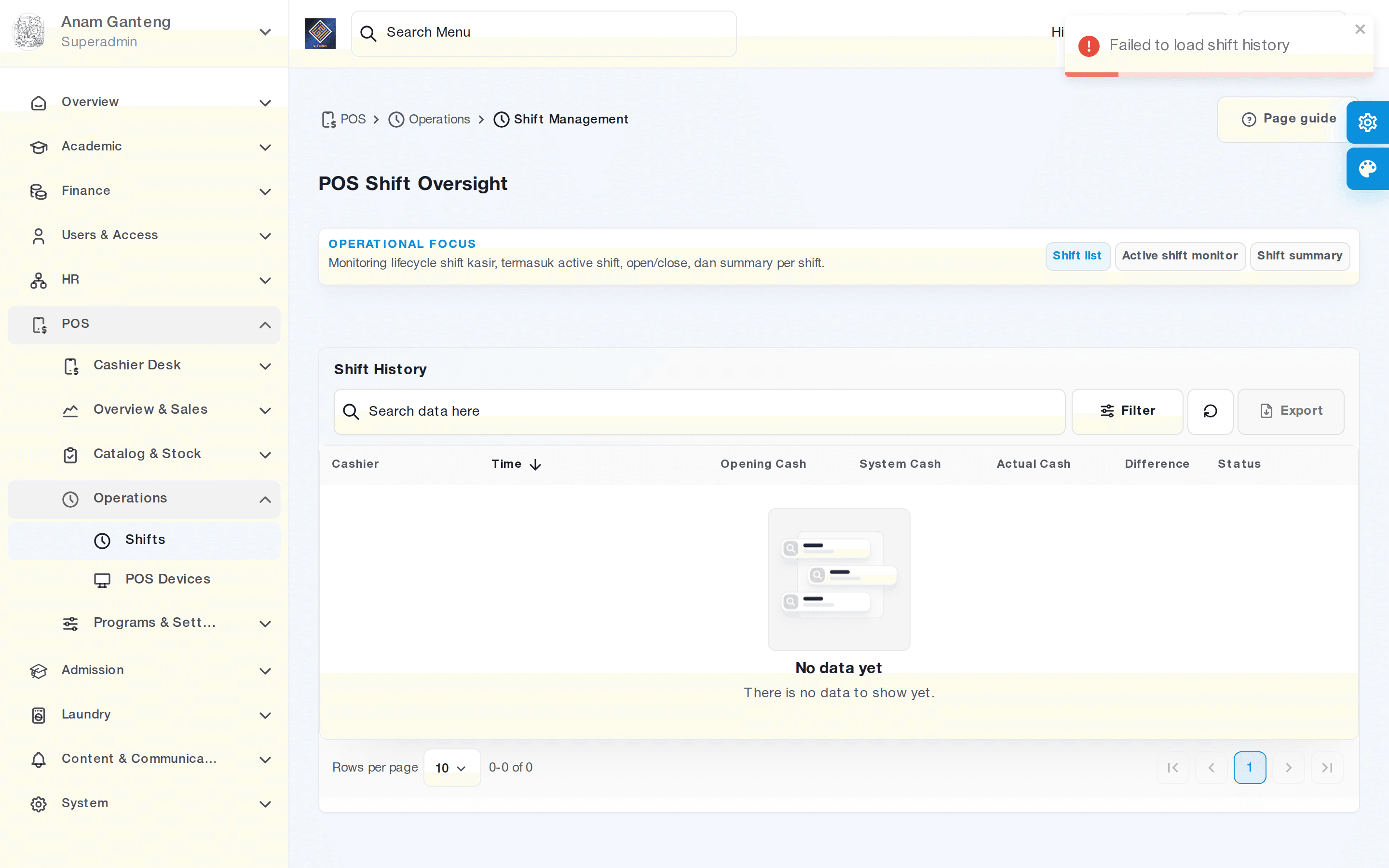
Each selling session should begin by opening a shift. The shift feature separates each operator's responsibility and makes end-of-session cash reconciliation easy. Open the Cashier Shifts menu at /admin/pos/shifts.
- Click open shift, then choose the operator/cashier on duty and the canteen location if there is more than one point of sale.
- Enter the opening cash balance (the cash in the drawer) as the shift's starting float.
- Confirm to begin. While the shift is open, all transactions are recorded under that shift.
- At the end of the session, close the shift and enter the actual cash amount. The system compares it against cash sales to reveal any difference.
Disciplined opening and closing of shifts keeps the cooperative's cash records transparent and easy to audit.
Processing a Cashier Transaction
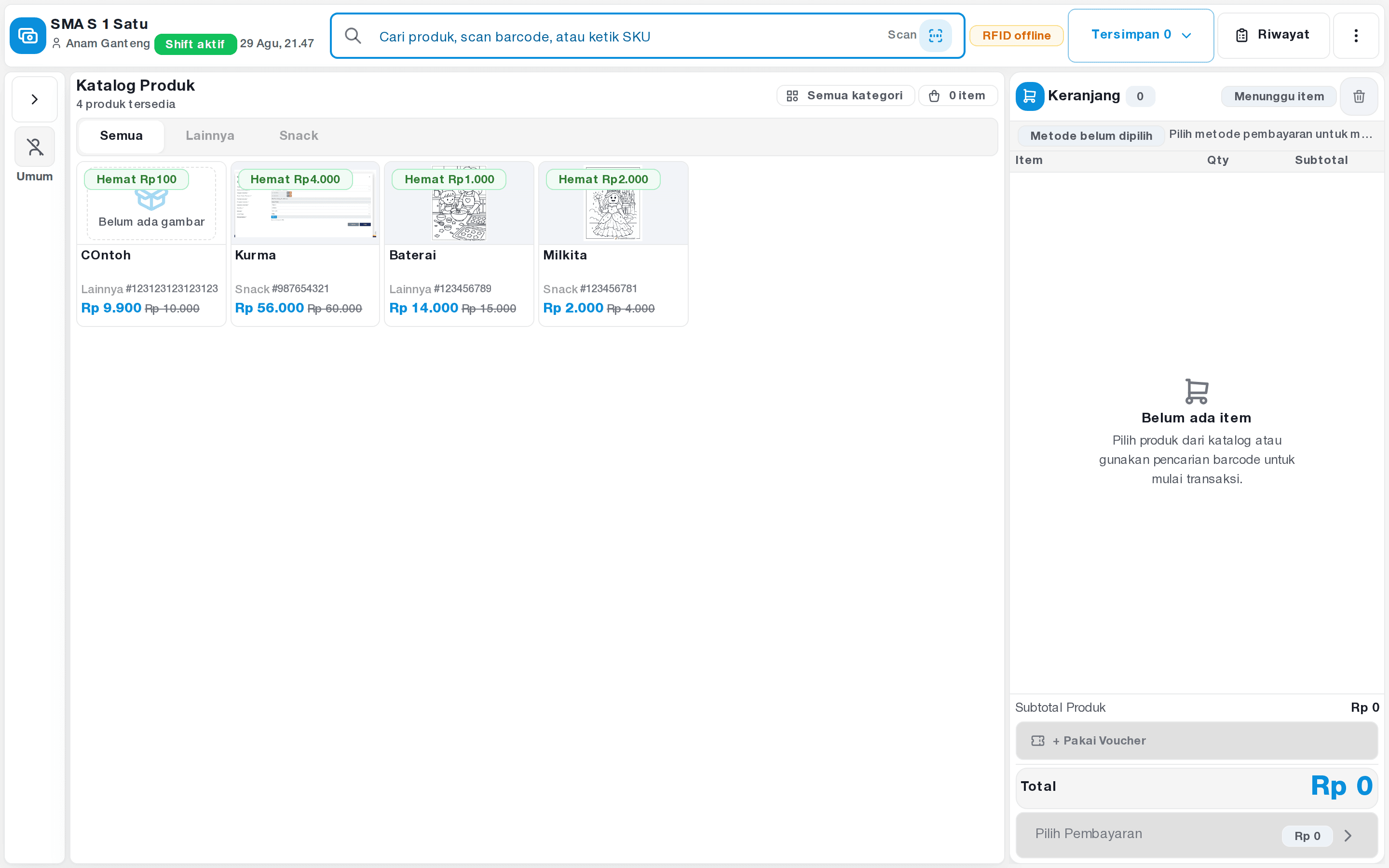
The heart of the canteen cashier is the Register screen. Open the Cashier (Register) menu at /admin/pos/cashier/register to serve student purchases.
- Search and select the products being bought, then set the quantity. Items are added to the transaction cart.
- If the student is a cooperative member, scan their card or type their ID number to link the transaction to their account.
- Choose the payment method: student wallet balance, card/RFID, or cash. For cashless sales, the system deducts the student's balance automatically.
- Apply a voucher or member points if available. The discount reduces the total immediately.
- Complete the transaction. The receipt can be printed or sent digitally, and product stock decreases automatically.
Because payment deducts the balance, students do not need to carry cash. This reduces the risk of lost money and helps parents monitor their child's spending.
Managing Inventory and Stock Movements
To keep canteen stock accurate, use the Inventory menu at /admin/pos/inventory. This module records every stock change, whether from sales or from purchasing new goods.
- Record incoming stock when goods arrive from suppliers, including the quantity and date.
- Make adjustments (movements) when items are damaged, expired, or when there is a difference after a stock count.
- Monitor low-stock products through minimum stock alerts, then reorder promptly.
- Run periodic stock counts to match physical stock against the records in the system.
A complete movement history helps you trace where goods went and keeps the cooperative's inventory healthy.
Vouchers, Member Points, and the Sales Dashboard
Student cooperatives often offer incentives such as discount vouchers or loyalty points. Vouchers and points can be applied directly during a transaction on the register screen, so member students receive extra benefits.
To monitor sales performance, open the POS Dashboard menu at /admin/pos/dashboard. Here you can view daily revenue, best-selling products, transaction counts, and comparisons across shifts. These analytics help you decide which items to restock and when the canteen's peak hours are.
Some advanced capabilities, such as dedicated cashier hardware, receipt printers, or a full points scheme, are optional and can be enabled based on your cooperative's needs.
Tips & Best Practices
- Structure product categories consistently from the start so operators can find items quickly at the register.
- Always open and close shifts on time; record the opening and closing cash to ease reconciliation.
- Run stock counts regularly, at least weekly, so inventory records do not drift from the physical count.
- Encourage cashless payment via balance to reduce cash risk and speed up the queue.
- Use the dashboard to track best-selling products and restock before running out.
- Limit cashier access to only the menus they need so cooperative data stays secure.
Troubleshooting
- Insufficient student balance at payment. Ask the student or parent to top up the balance first, or offer cash payment for that transaction.
- System stock differs from the physical count. Make a movement adjustment in the Inventory menu and schedule a stock count to find the cause of the difference.
- A shift cannot be closed. Make sure all transactions are complete (no pending carts) before closing the shift.
- A product does not appear at the register. Check whether the product is still active and has stock; inactive or out-of-stock products may be hidden from the register screen.
- Cash difference at the end of a shift. Compare cash sales with the drawer amount; small differences may come from change, while large ones need a per-transaction review.
FAQ
Can students pay without cash at the canteen?
Yes. As long as the student's digital wallet balance is active, payment can deduct the balance directly via card/RFID or ID number, so cashless sales run smoothly.
How do I find out the best-selling products in the canteen?
Open the POS Dashboard at /admin/pos/dashboard. The sales analytics display best-selling products, daily revenue, and transaction counts so you can plan stock more accurately.
Is it mandatory to open a shift before selling?
It is strongly recommended. A shift separates each cashier's responsibility and eases cash reconciliation at the end of a session. Without a shift, tracing money becomes harder.
How do I handle low stock?
Set a minimum stock threshold in the Products menu so the system warns you. When stock runs low, record incoming stock through the Inventory menu once goods arrive from the supplier.
Can the cooperative offer member discounts or points?
Yes. Discount vouchers and member points can be applied directly during a transaction on the register screen, according to your cooperative's policy.
Related menus in the app
- Cashier (Register) — the main screen for serving sales transactions and accepting balance, card, or cash payments.
- Products — the canteen and cooperative product catalog with categories, prices, and stock.
- Inventory — recording incoming stock, adjustments, and goods movements.
- Cashier Shifts — open and close cashier sessions for per-operator cash reconciliation.
- POS Dashboard — sales analytics, revenue, and best-selling canteen products.