
Grading, Report Cards, and Class Ranking in Aerish
Configure assessment components, input lesson grades, compile final report cards, and compute class ranking.

Report card grades are the endpoint of every academic process in a pesantren: from attendance and assignments to quizzes and final exams. This student grading guide is written for academic admins, homeroom teachers, and subject teachers responsible for configuring assessment components, inputting lesson grades, aggregating final grades, and computing class ranking in the Aerish app. With the right flow, you can produce a digital report card that is consistent, transparent, and defensible to parents and guardians.
In Aerish, grading is built from four interconnected menus: Assessment Components to set the weights, Lesson Grades for teachers to enter daily marks, Final Grades to compile the report card, and Class Ranking to rank student achievement. Understanding the order of these four is the key to keeping report card grades from falling apart at the end of the semester.
Prerequisites
Before you start managing student grading, make sure the following academic foundations are ready:
- The active academic year and semester have been set.
- Class data and student placements are complete, because grading is tied to a class.
- The subject master is registered and mapped to each class.
- Teaching schedules are arranged so every teacher knows which subject and class they are responsible for.
- Subject teacher and homeroom teacher accounts are active with the correct permissions to input grades.
If any of the above is missing, resolve it first through the academic modules so that grading does not stall once the semester is underway.
Setting Up Assessment Components and Weights
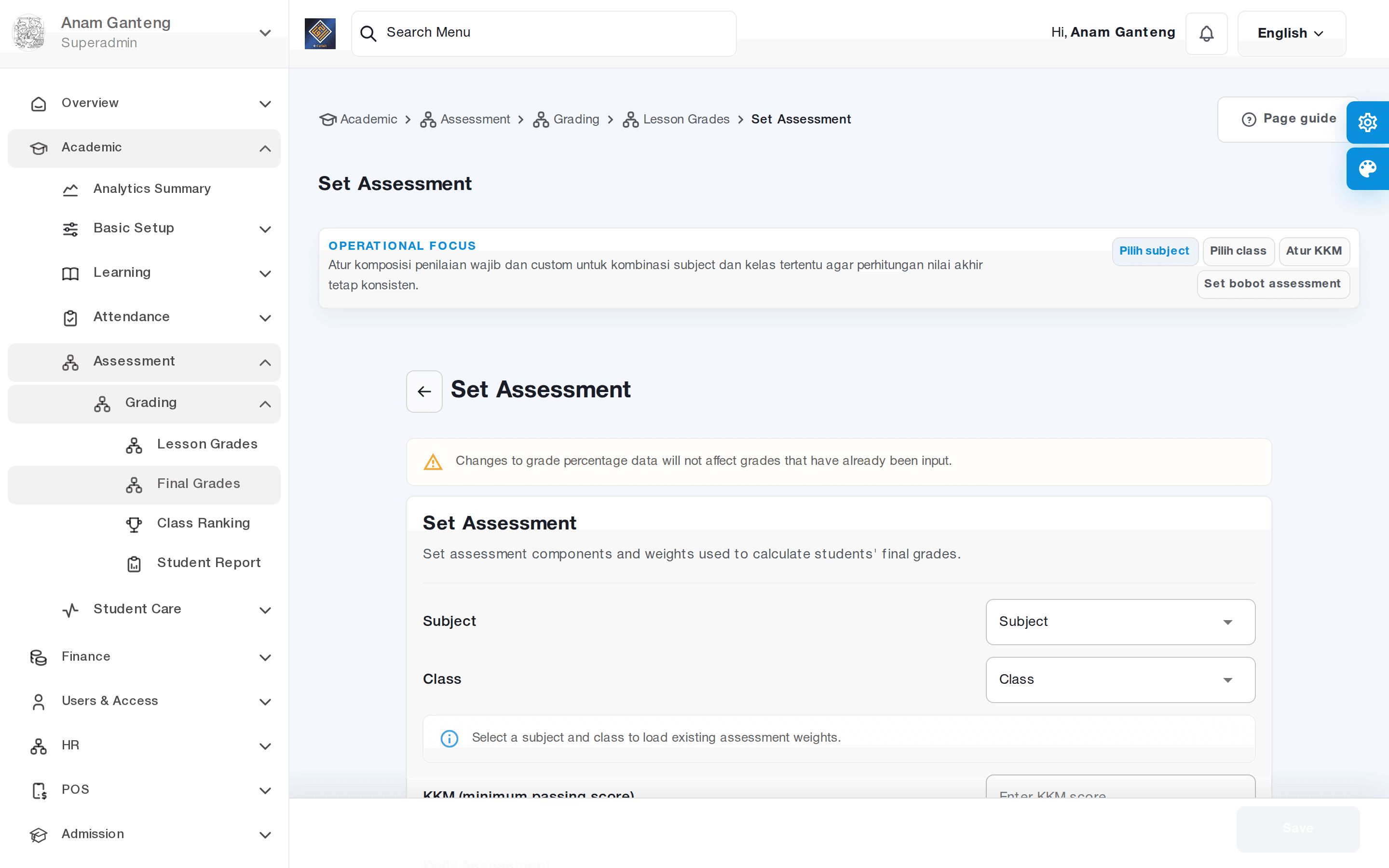
The first step in student grading is defining components and weights. This is the framework that determines how the final report card grade is calculated from various daily assessments.
- Open the Assessment Components menu at /admin/lesson-grades/set-assessment.
- Select the academic year, semester, class, and subject you want to configure.
- Add assessment components, for example Assignments, Daily Quizzes, Mid-Semester Assessment, and End-of-Semester Assessment.
- Enter the weight of each component as a percentage. Make sure the total weight adds up to exactly 100% so the final grade aggregation is accurate.
- Save the configuration. If your pesantren standardizes weights across all subjects, apply the same pattern consistently.
Setting weights at the start of the semester prevents disputes at the end and makes report card calculation automatic and objective.
Inputting Lesson Grades as a Teacher
Once the components are ready, subject teachers can begin entering lesson grades based on the assessments happening in class.
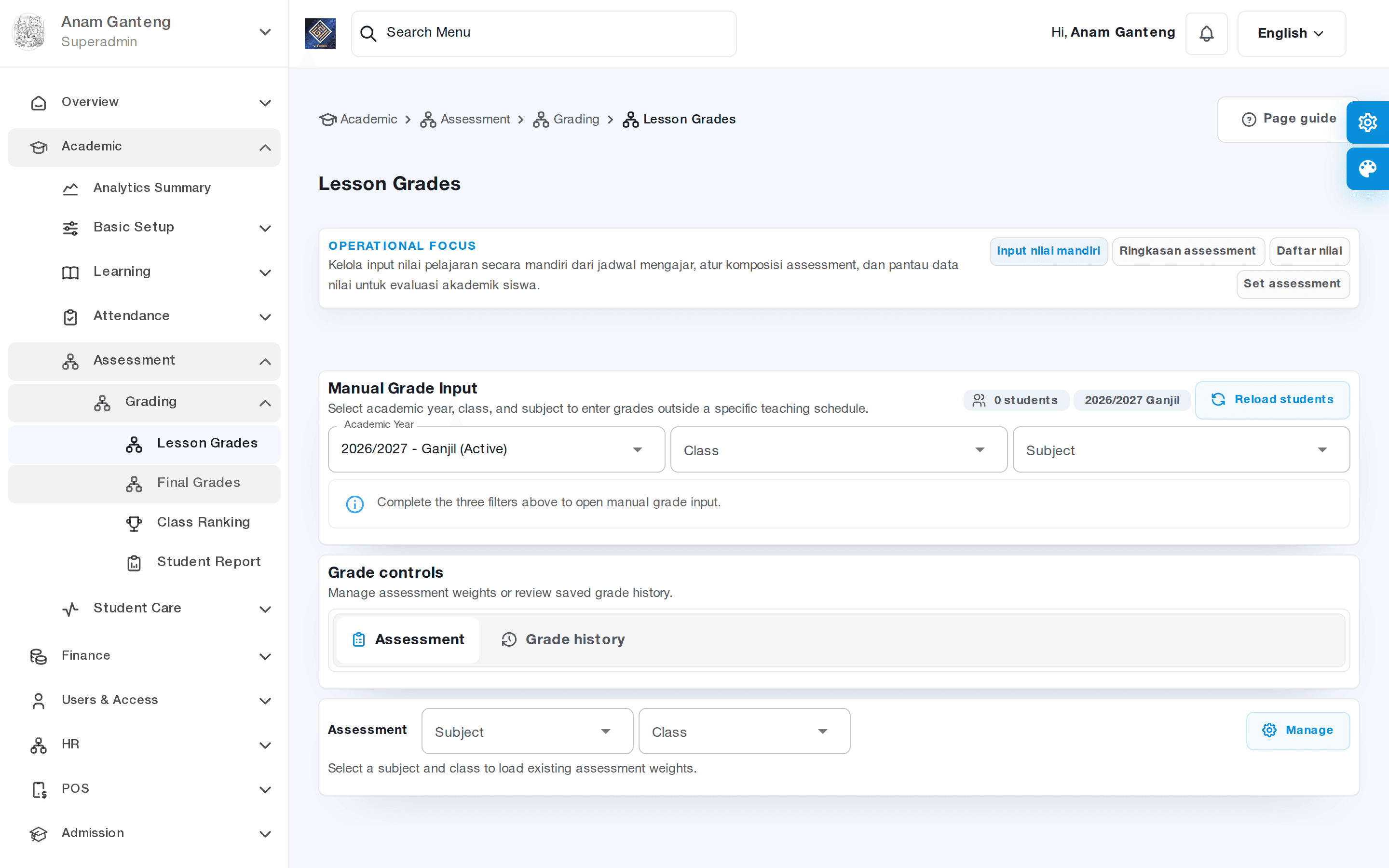
- The teacher opens the Lesson Grades menu at /admin/lesson-grades.
- Select the class and subject they teach, then choose the assessment component to fill in (for example Daily Quiz 1).
- The system displays the list of students in that class. Enter a grade for each student using the agreed scale, commonly 0–100.
- For students who did not take the assessment, mark them per policy (for example blank or in need of remedial work) instead of entering arbitrary numbers.
- Save. Grades are stored per component so the recap automatically follows the weights you defined.
Grade-scale consistency is essential. If one teacher uses a 0–100 scale and another uses 0–10, the ranking and report cards will be misleading. Agree on a single scale for the entire pesantren.
Compiling Final Grades and the Report Card
The final grade is the aggregation of all components based on their weights, and it becomes the basis of a student's digital report card.
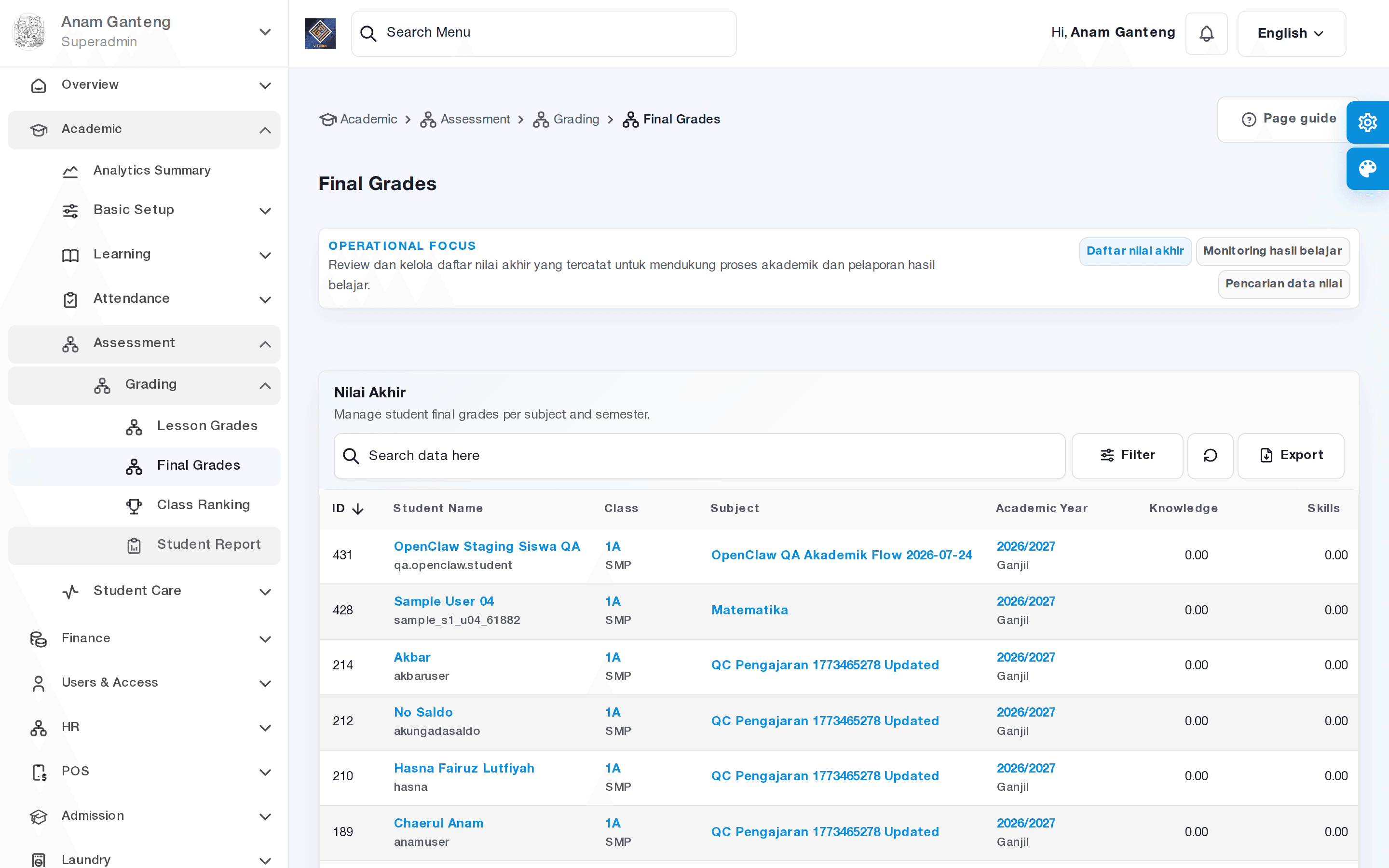
- Open the Final Grades menu at /admin/final-grades.
- Select the academic year, semester, and class you want to compile.
- The system calculates the final grade for each subject by multiplying each component's grade by its weight, then summing the results.
- Check whether any subject or student has an empty grade. Complete it first in the Lesson Grades menu before finalizing.
- Once all grades are complete and verified by the homeroom teacher, finalize the report card per your pesantren's procedure so it can be shared with parents.
Some pesantren add homeroom teacher notes or achievement descriptions to the report card. Use that feature if it is available to make the report more informative, without forcing assessments that were never measured.
Computing and Publishing Class Ranking
Class ranking gives a picture of relative student achievement and is often anticipated by parents. Aerish computes it automatically from the final grades.
- Open the Class Ranking menu at /admin/class-ranking.
- Select the academic year, semester, and class.
- The system sorts students by the average or total of their final grades according to the applicable policy.
- Review the ranking, especially for tied scores, and make sure it follows your pesantren's ranking rules.
- Publish the ranking per policy; some pesantren only show the top ranks or hide them entirely for the sake of students' well-being.
Remember that a ranking is only as accurate as the grade data behind it. Make sure Lesson Grades and Final Grades are finalized before publishing the ranking.
Tips & Best Practices
- Define assessment components and weights at the start of the semester, then lock them so they do not change midway.
- Standardize the grade scale (for example 0–100) across all subjects and all teachers.
- Ask teachers to input lesson grades regularly instead of piling them up at the end of the semester.
- Apply layered verification: teachers input, homeroom teachers review, academic admins close the period.
- Align grading policy with attendance; conduct and attendance often influence the report card.
- Keep documentation of your grading policy so it stays uniform across cohorts and is easy to audit.
Troubleshooting
Total weight is not 100%. Reopen Assessment Components and adjust until the weights sum to exactly 100% before closing the semester.
Final grade is empty for some students. This usually means a component has not been filled in. Return to Lesson Grades, complete the missing component, then recalculate in Final Grades.
A teacher cannot input grades. Check the teacher account's permissions and make sure the teaching schedule maps the teacher to the correct class and subject.
The ranking looks off. Verify grade-scale consistency across teachers and confirm that all Final Grades are finalized before the ranking is computed.
FAQ
Can assessment weights differ per subject?
Yes. Components and weights are set per subject per class, so practical subjects and theory subjects can have different compositions. For fairness, however, many pesantren choose a uniform weighting pattern.
Who is allowed to input lesson grades?
Generally the subject teacher assigned to the relevant class, based on the teaching schedule and account permissions. Homeroom teachers and academic admins can verify or close the grading period.
What if a student needs remedial work?
Grade corrections can be re-entered on the same component in the Lesson Grades menu per the pesantren's remedial policy, and Final Grades are recalculated so the report card reflects the latest result.
Is publishing the ranking mandatory?
No. Publishing the ranking is each pesantren's own policy. Some display it in a limited way, while others keep it as internal data.
Can parents access the report card?
Once the report card is finalized, achievements can be shared following the pesantren's flow. Make sure all grades are complete and verified before opening it to parents.
Related menus in the app
- Nilai Pelajaran — where teachers input daily grades per component for each student.
- Komponen Penilaian — configure component types and assessment weights before inputting grades.
- Nilai Akhir — aggregate all components into the final report card grade per class.
- Ranking Kelas — compute and display student rankings based on final grades.