
Guide to Class Schedules and Online Courses in Aerish
Build lesson schedules, manage online courses, run quizzes, and set teaching schedules in the Aerish app.
Building a tidy lesson schedule is the backbone of teaching and learning in a pesantren, and in Aerish it lives in one place alongside online courses, online quizzes, and each teacher's teaching schedule. This guide is written for academic admins, operators, and curriculum coordinators who arrange class hours per class and subject, avoid clashes, and bring learning online for students.
By following the steps below, you will be able to build a weekly lesson schedule that becomes the basis for class attendance, create online courses complete with materials, and run online quizzes to measure student understanding. Every example refers to the official menus in the Aerish app so you can follow along while practising directly.
Prerequisites
Before scheduling, make sure your core academic data is ready. Without it, the selection fields will be empty when you try to build a schedule.
- An active academic year has been created and set as the current period.
- The list of classes (study groups) is defined together with their homeroom teachers.
- Subjects are registered in the subject master.
- Teacher data exists and is ready to be assigned to subjects.
- Your account has access to the Academics module (the Class Schedules, Online Courses, and Online Quiz menus).
If any of these is missing, finish setting up your academic master data first. The full walkthrough is in the academic data article linked at the end.
Building the Lesson Schedule per Class
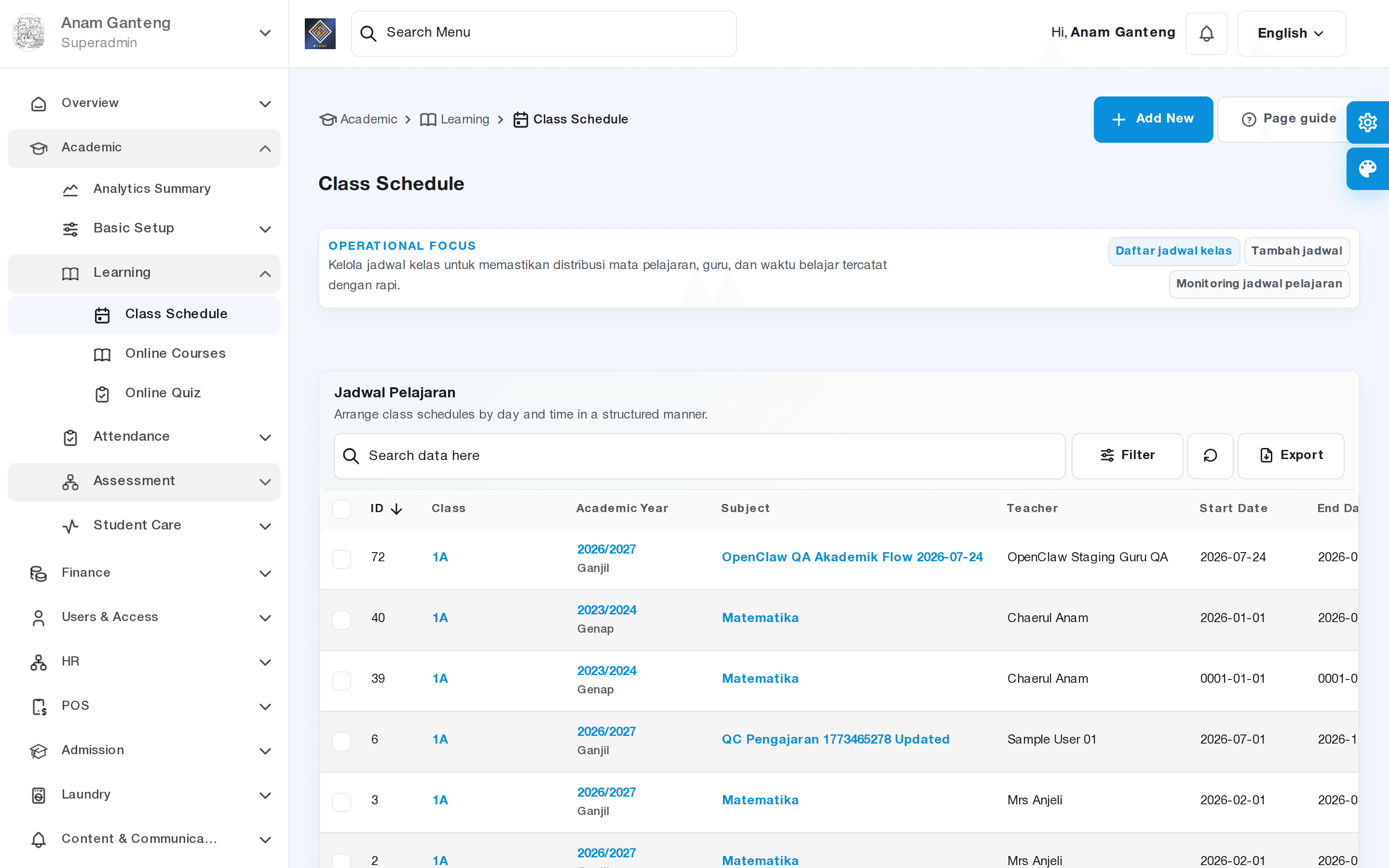
The heart of scheduling is the Class Schedules menu. Here you map the combination of class, subject, assigned teacher, day, and time into a weekly schedule grid.
- Open the Class Schedules menu under the Academics group.
- Choose the active academic year and the class you want to schedule.
- Add a lesson slot: set the day, start and end time, the subject, and the assigned teacher.
- Save the slot, then repeat for every session in the week until the schedule grid is complete.
- Review the weekly view to make sure there are no unintended empty periods.
This per-class schedule also becomes each teacher's teaching schedule: the system derives it into a list of classes the teacher must lead on a given day and time. That is exactly why an accurate schedule matters so much, because it becomes the basis for filling in class attendance.
Avoiding Schedule Clashes
A clash happens when one teacher is scheduled to teach two different classes at the same time, or when a single class has two subjects in the same slot. Aerish helps detect this overlap when you save a slot.
- Watch for the clash warning that appears when you save an overlapping schedule.
- Make sure each teacher occupies only one slot at the same day and time across all classes.
- Resolve clashes by shifting the time, swapping the teacher, or changing the day before finalising the schedule.
Resolving clashes early saves a lot of rework once the teaching week is already underway.
The Teaching Schedule as the Basis for Attendance
Once the class schedule is tidy, teachers see which classes they lead that day straight from their teaching schedule. This is where class attendance begins: every scheduled meeting becomes an attendance entry ready to be filled in. Consistency in the schedule therefore directly affects how clean the student attendance recap will be.
Managing Online Courses and Materials
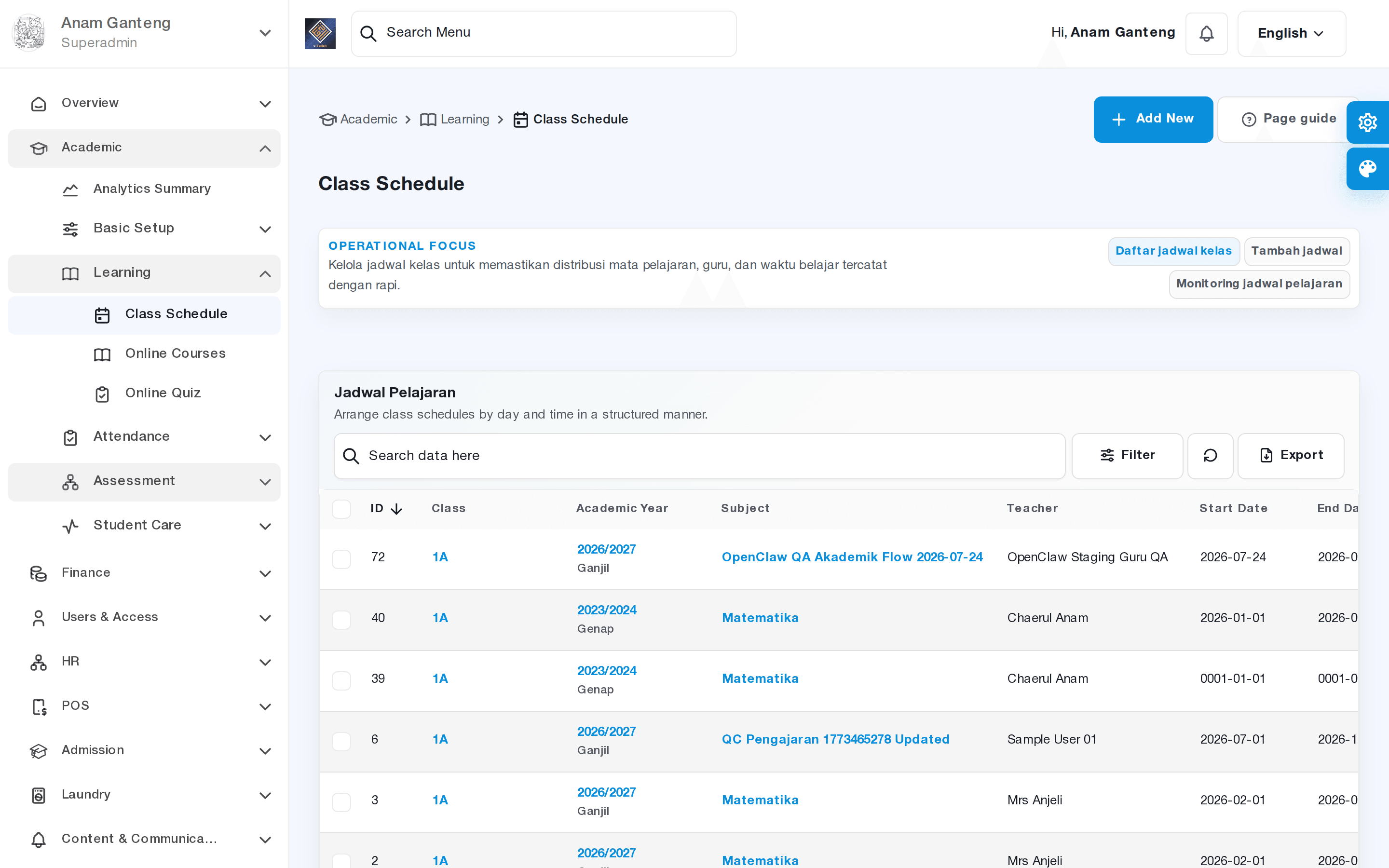
The Online Courses menu lets you move part of the learning into the digital space: teachers can create online classrooms, upload materials, and share teaching resources with students in the relevant class. This is especially useful for independent study and for deepening material outside face-to-face hours.
- Open the Online Courses menu under the Academics group.
- Create a new online course and link it to the subject and the class/study group that will participate.
- Assign the teacher who will lead the online course.
- Add materials: upload documents, links, or modules that students need to study.
- Publish the online course so it appears in the student app for the correct class.
Arrange materials step by step following the syllabus flow so students can easily understand the learning order. Well-organised materials also make it easier for teachers to design assessments later.
Running Online Quizzes
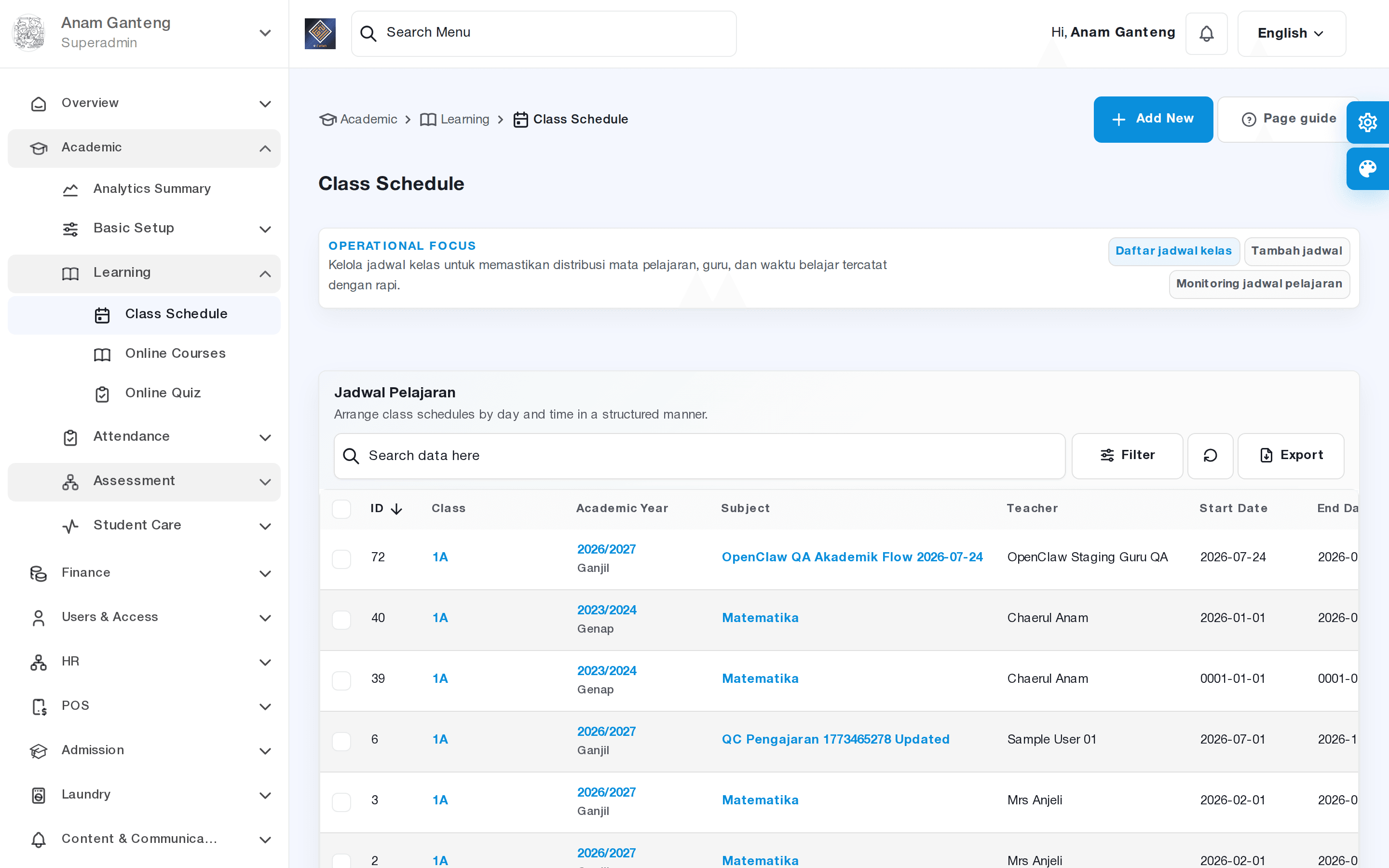
To measure student understanding quickly, use the Online Quiz menu. Online quizzes work well as practice, daily tests, or light evaluations that can be graded automatically.
- Open the Online Quiz menu under the Academics group.
- Create a new quiz, filling in the title, subject, and participating class.
- Add questions with answer options and the correct answer key.
- Set the time limit for completion as well as the open and close schedule for the quiz.
- Publish the quiz, then monitor student results and scores once submissions are complete.
Because many question types can be graded automatically, online quizzes save marking time and give students fast feedback. Quiz results can serve as one input for grading, which is covered in the grading and report card article.
Tips & Best Practices
- Build the class schedule at the start of the term and finalise it before the first week so teachers and students have certainty about hours.
- Use a consistent time pattern (e.g. a uniform duration per lesson period) to make slot arrangement easier.
- Always resolve schedule clashes before publishing; do not defer them until activities are running.
- Name online courses and quizzes descriptively (include subject and topic) so they are easy to find.
- Use online courses to hold materials students can revisit, not just one-off announcements.
- Test one sample quiz first to confirm the answer key and time limit are correct.
Troubleshooting
Here are some of the issues admins most often meet when arranging schedules and online classes, along with their solutions.
- A subject or teacher does not appear when building a schedule. Make sure the subject is registered in the master and the teacher is recorded in the active academic year.
- An unexpected clash warning appears. Check other slots belonging to the same teacher or class at that time, then shift one of them.
- The online course does not show up in the student app. Verify that the online course has been published and linked to the correct class/study group.
- Students cannot take the quiz. Confirm that the quiz open-close schedule is active and the participating class is correct.
- Class attendance does not appear for a teacher. Attendance follows the teaching schedule; make sure the class schedule for that day is saved correctly.
FAQ
How is the lesson schedule related to class attendance?
The class schedule automatically becomes the teacher's teaching schedule, and every scheduled meeting becomes an attendance entry. So class attendance will only be accurate if the lesson schedule is arranged correctly first.
Can one teacher lead several online courses?
Yes. A teacher can be assigned to several different online courses, as long as each online course is linked to its matching subject and participating study group.
Are online quizzes graded automatically?
For choice-based questions with an answer key, the system can grade automatically so scores are available immediately after students finish within the set time limit.
How do I change a schedule that is already running?
Reopen the Class Schedules menu, choose the relevant class, then edit the slots that need updating. Watch for the clash warning when saving so your changes do not create a new overlap.
Are online courses and online quizzes available on every plan?
Availability of the online learning modules may differ depending on your school's subscription plan. If the Online Courses or Online Quiz menu does not appear, contact your system administrator to check access rights and the active plan.
Related menus in the app
- Jadwal Kelas — build the weekly lesson schedule per class and subject, and the basis for each teacher's teaching schedule.
- Kelas Online — create online classrooms, upload materials, and share teaching resources with students.
- Kuis Online — create and run online quizzes with fast grading to measure student understanding.