
Getting Started with Aerish for School Administrators
Your first steps with Aerish: sign in, get to know the dashboard, and prepare your initial school data.
Welcome to the Aerish pesantren app — a Pesantren Digital platform that brings student data, academics, finance, human resources, and daily operations together in one system. This administrator guide is the pillar article that introduces you to the entire Aerish menu map and serves as your starting point before you dive into each module in detail.
This guide is written for school administrators, operators, and pesantren leaders who are holding an Aerish account for the very first time. After reading it, you will know how to sign in, get to know the school dashboard, understand the menu structure, tell the admin/teacher/student roles apart, and follow the correct initial setup order so your digital pesantren data is organized from day one.
Prerequisites
- An Aerish admin account created for you by the implementation team or your pesantren super-admin.
- An email address and password (or an activation link) for your first sign-in.
- A modern browser (the latest Google Chrome, Microsoft Edge, or Firefox) and a stable internet connection.
- Basic pesantren data ready to enter: the institution profile, a list of classes, a list of prospective users (teachers/staff), and the academic year you want to activate.
- A clear division of duties: who is the primary admin, and who manages specific modules such as finance, academics, or admissions.
Signing In and Getting to Know the School Dashboard
Your first step with the Aerish pesantren app is to reach the admin panel. The panel address and its home page live under the Dashboard menu.
- Open the Aerish app address in your browser, then enter your admin account email and password.
- If this is your first sign-in, follow the activation link or change the temporary password into a strong, personal one.
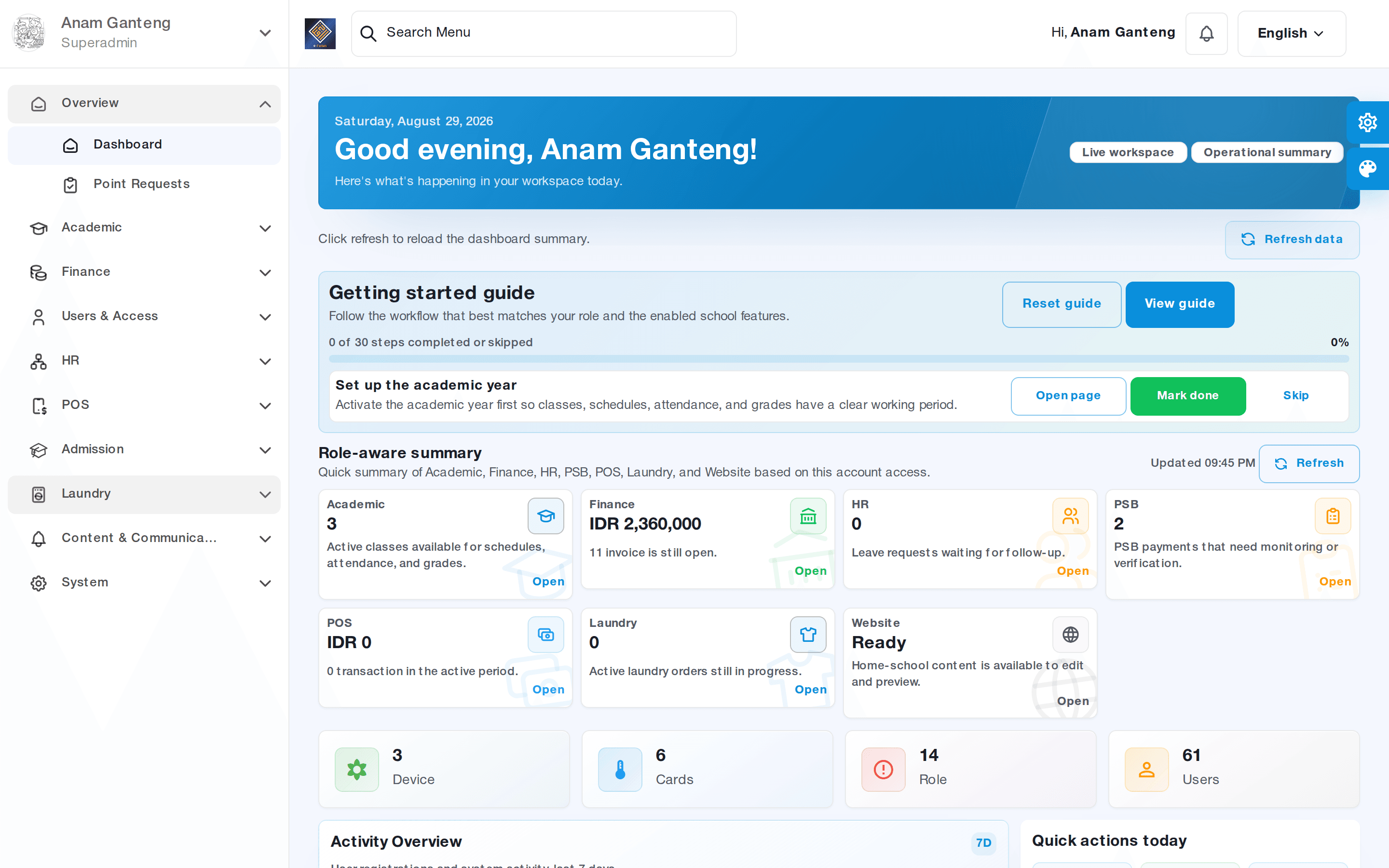
- Once you are in, you land on the Dashboard — a snapshot of your pesantren: student counts, a finance summary, attendance, and quick shortcuts to the modules you use most.
- Take a moment to explore the navigation panel on the left. This is where every Aerish module is grouped.
Getting to Know the Aerish Menu Structure
Aerish groups its features by the way a pesantren actually works. Understanding this map lets you find the right menu quickly. Here are the main groups.
Overview
Your daily entry point: the Dashboard with summary metrics and shortcuts. It is ideal for glancing at your pesantren's status each morning.
Academic
The foundation of learning: academic year, classes, student data, subjects, lesson schedules, class attendance, grading, report cards, and ranking. This is the heart of school operations.
Finance
Money management: bill types, SPP invoices, invoices, payments, the school account, the digital wallet, and student savings. Employee payroll also flows in here.
HR
Employee data, departments, positions, staff attendance, leave requests, and performance points that feed into payroll.
PSB (New Student Admission)
The online admission flow: setting up waves and fees, registration, entrance exams, and the graduation announcement.
POS & Laundry
Operational modules: the canteen/cooperative cashier (POS) with products, stock, and shifts; plus the student laundry service with orders and complaints.
Content
Communication with guardians and the public: news, a media library, notifications, and management of the school website.
System
System control: user accounts, access control (RBAC), profile-change requests, and activity logs. This is where the security of your pesantren app is protected.
Understanding Roles: Admin, Teacher, and Student
Aerish separates users by role so that each person only sees and edits the data they are responsible for.
- Admin/Operator — holds full or partial control: managing master data, issuing invoices, managing accounts, and designing access rights.
- Teacher — focuses on teaching duties: filling in class attendance, entering lesson grades, and managing online classes based on their teaching schedule.
- Student & Guardian — accesses personal information: schedules, grades, invoices, savings balance, and receives notifications through the app.
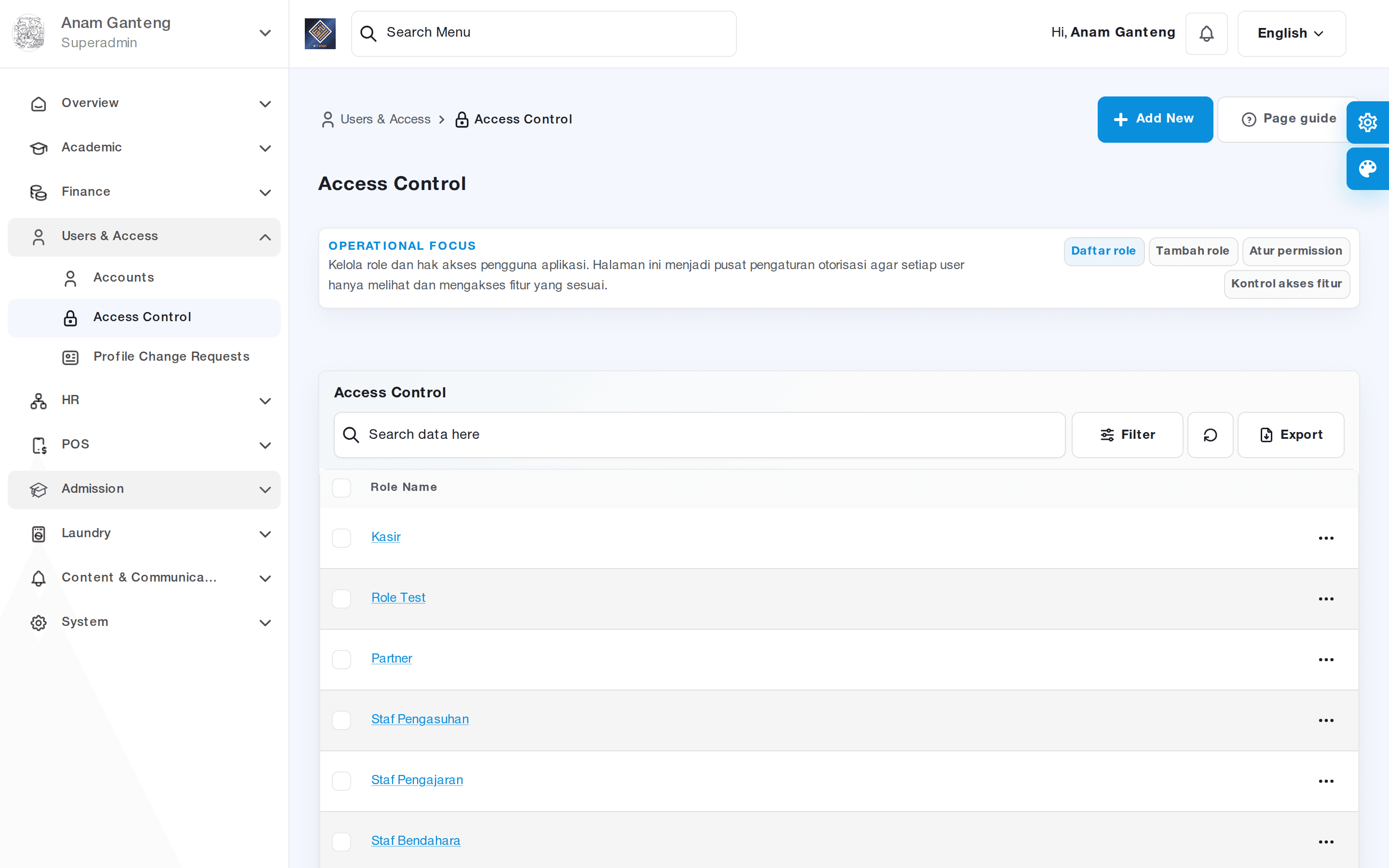
This role split is realized through the accounts and access-control modules. You can configure them at User Accounts and Access Control.
Recommended Initial Setup Order
To make the move to a digital pesantren smooth, follow this order. Skipping a step can leave interdependent data inconsistent.
- Activate the Academic Year. Set the current academic year as the context for all academic and finance data.
- Build the Classes. Define grade levels and study groups as containers for placing students.
- Enter Student and Teacher Data. Register or import students and place them into classes; register your teaching staff too.
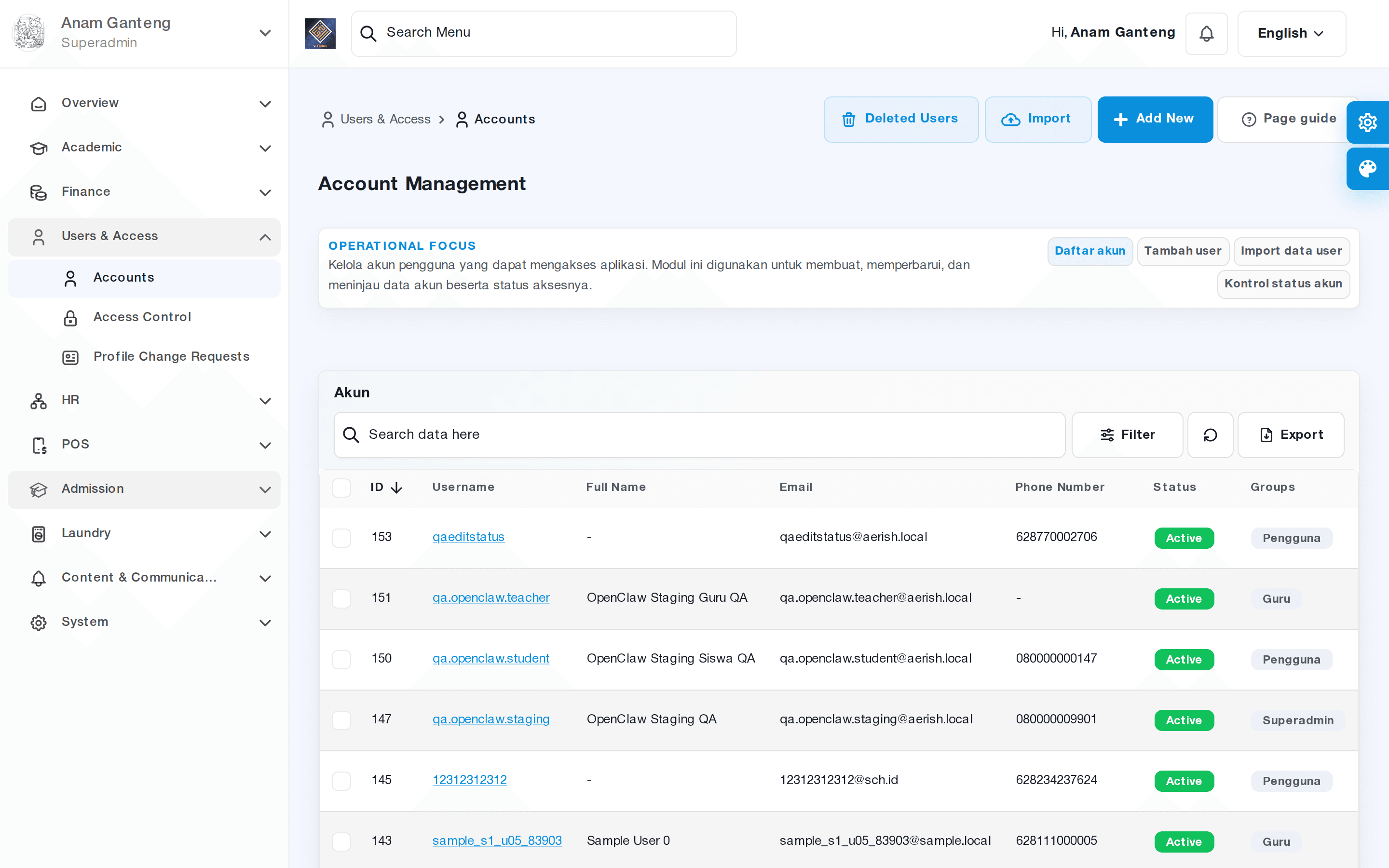
- Create User Accounts. Issue additional admin, teacher, and student/guardian accounts from the User Accounts menu.
- Set Access Rights. Design roles and map granular permissions so each user only opens the modules relevant to them.
- Enable Operational Modules. Once the foundation is ready, move on to finance, admissions, POS, or laundry as needed.
Tips & Best Practices
- Use one primary admin account for initial configuration, then delegate through roles so the audit trail stays clean.
- Finish the academic setup (academic year, classes, students) before touching finance; many finance menus depend on class data.
- Give roles clear names (for example "Finance Admin", "Class Teacher") so your team understands them at a glance.
- Enable only the modules you truly use first; some features are optional/premium and can be turned on gradually.
- Run periodic checks through Activity Logs to make sure no unexpected data changes have slipped through.
Troubleshooting
- Can't sign in. Confirm the email is correct and the password has not expired. Use the forgot-password feature or ask your super-admin to reset the account.
- A menu is missing. Most likely your account's role has not been granted the permission. Check the mapping under Access Control.
- Class data is empty when creating an invoice. The academic year is not active yet, or classes have not been created. Complete the academic setup first.
- A teacher can't enter grades or attendance. Make sure the teacher has an account, is linked to a teaching schedule, and their role holds academic permissions.
FAQ
Do I need to install a special application?
Not on the admin side. The Aerish admin panel is web-based and works through a browser. Guardians and students usually use the mobile app to view information and receive notifications.
Where should I start if I am brand new?
Start at the Dashboard for orientation, then follow the initial setup order: academic year, classes, student data, accounts, and access rights. Only after that should you move into specific modules.
Can several admins work at the same time?
Yes. You can create many accounts with different roles — for example a finance admin, an academic admin, and an admissions admin — each with permissions limited through RBAC.
Are all modules active from the start?
Some modules are core and available immediately, while certain operational services can be optional. Enable them as your pesantren needs so the interface stays uncluttered.
How do I keep accounts secure?
Use strong passwords, never share accounts, limit permissions through access control, and review Activity Logs regularly to detect unusual changes.
Related menus in the app
- Dashboard — the home page with student, finance, and attendance summaries plus shortcuts to frequently used modules.
- User Accounts — where you create, edit, and deactivate admin, teacher, and student/guardian accounts.
- Access Control — the role and granular permission (RBAC) settings that decide which menus each user can reach.
Read also
- User Accounts and Access Control (RBAC) in Aerish App — a deeper look at creating accounts and mapping permissions, the direct follow-up to this guide.
- Managing Academic Data: Classes, Students, Subjects — the academic foundation you must prepare during initial setup.
- Complete Guide to Online Student Admission in Aerish — the new-student admission flow from registration to announcement.