
Content Guide: News, Media, and Notifications Aerish
Publish school news, manage the media library, send notifications, and manage the public website in Aerish.
The school news, media, and notifications module in Aerish is your pesantren's official communication hub for parents, students, and the wider public. This guide is written for content admins and operators who publish announcements, manage the media library, send push notifications, and keep the public school website fresh and trustworthy.
With one tidy workflow, you can make sure every important update — from activity agendas and competition results to holiday announcements — reaches the right audience at the right time. We will walk through the four core menus in order so you never have to second-guess which communication channel to use.
Prerequisites
Before you start managing content, make sure the following are ready:
- Your account has access to the Content & Comms module (news, media, notifications, website). If a menu is missing, ask an administrator to grant the permission through access control.
- Your content is prepared: a title, body text, and supporting images at a reasonable resolution (ideally at least 1200 pixels wide for a news cover image).
- You understand each channel's audience: news and the website serve the public and parents, while notifications are for quick alerts inside the parent and student apps.
- Your editorial policy is agreed, such as who approves news before it goes live and how comment moderation is handled.
Publishing School News and Announcements
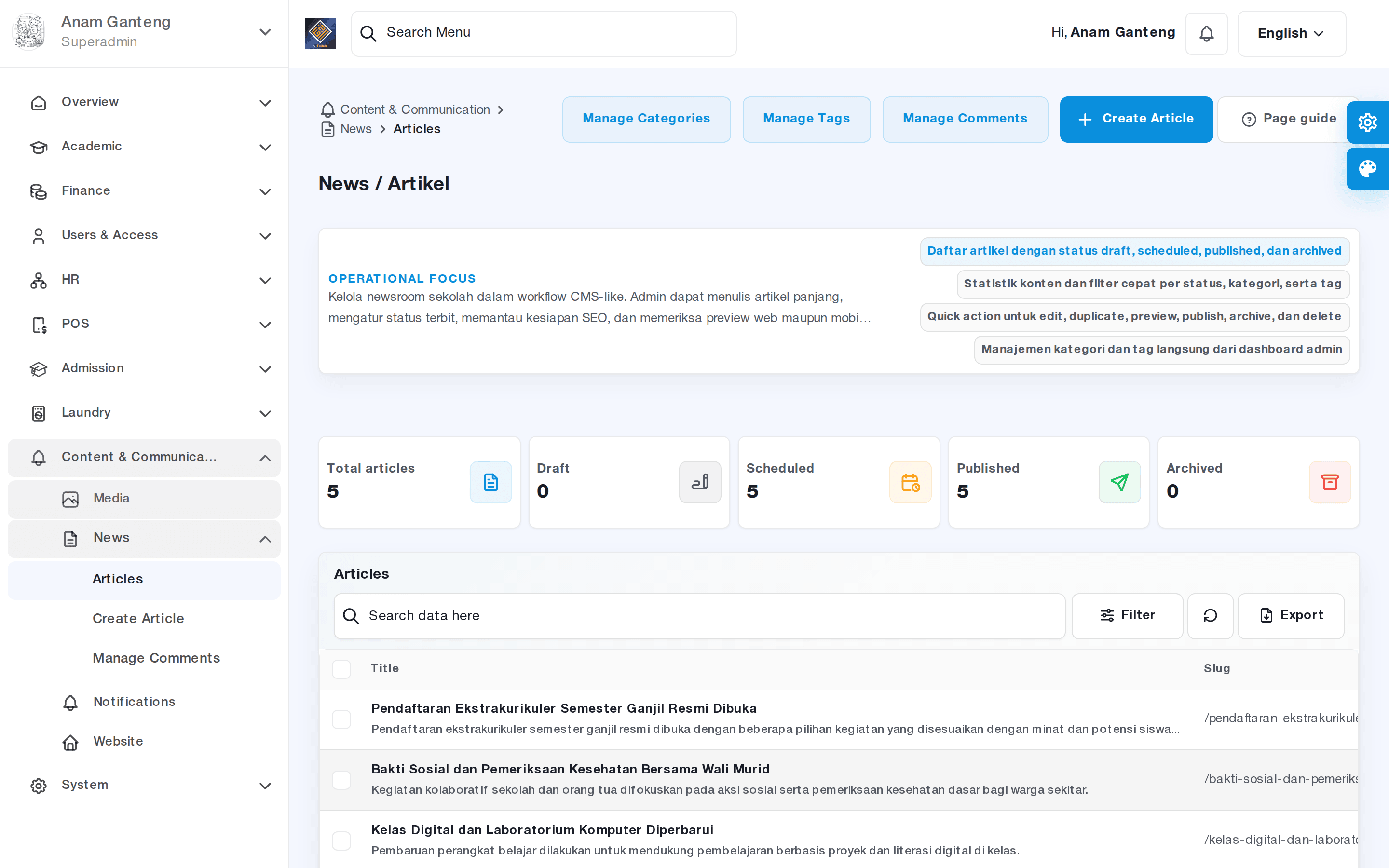
The News menu is where you create your pesantren's official articles, from stories about student activities to important announcements. Published news can appear in the parent and student apps as well as on the public website, so writing quality directly shapes the school's image.
Follow these steps to publish a piece of news:
- Open the News menu and click the button to create a new article.
- Enter a clear, concise title. A good title captures the essence of the story, for example "Tahfidz Class Students Win the District Quran Competition".
- Write the body in the text editor. Use short paragraphs, add subheadings where useful, and insert images from the media library to make it more engaging.
- Choose a cover image, category, and publish date. An appealing cover boosts readership on the app home screen.
- Save it as a draft first if it still needs review, or publish immediately once it is final and approved.
After the news is live, you can return anytime to edit, deactivate, or delete it. Any change to the article is reflected instantly on the channels that display it.
Moderating News Comments
If comments are enabled, parents or students can respond to your news. As a content admin, your job is to keep the discussion space healthy. Review incoming comments, approve relevant ones, and hide or remove anything inappropriate. Consistent moderation builds the pesantren community's trust in this official channel.
Managing the Media Library
The Media menu acts as a centralized media library: one place for every image and file you use in news, notifications, and the website. Storing assets here makes them easy to reuse without uploading the same file over and over.
- Open the Media menu to see all previously uploaded files.
- Click upload, then choose one or more images from your device. Give each file a descriptive name so it is easy to find later.
- Organize assets into folders or categories if available, for example separating activity photos, logos, and banners.
- When writing news or configuring the website, pick images directly from this library so your assets stay consistent.
Make a habit of compressing images before uploading so pages stay light and load quickly, especially for parents on mobile networks.
Sending and Monitoring Notifications
The Notifications menu lets you send push notifications straight to the parent and student apps. Notifications are ideal for urgent updates that need immediate attention, such as payment reminders, schedule changes, or last-minute holiday announcements.
- Open the Notifications menu and create a new message.
- Write a short title and a body that gets straight to the point. Overly long notifications tend to get cut off on phone screens.
- Choose the recipients: all users, a specific group (such as a particular class's parents), or an individual, depending on the options available.
- Send immediately or schedule it if scheduling is supported, then monitor the delivery status.
After sending, review the notification history to confirm the message went out. This history also serves as a record of the pesantren's official communications.
Managing the Public School Website
The Website menu is where you configure the pesantren's public site, seen by prospective parents and the general public. This is where the school's first impression is formed, so keep the information current at all times.
- Open the Website menu to configure page sections such as the home page, profile, and contact details.
- Update the welcome text, vision and mission, and photo gallery using assets from the media library.
- Ensure the latest news shows automatically on the site so visitors see an active pesantren.
- Save your changes and review them through the preview before you actually publish.
A well-maintained website strengthens trust and can even support new-student admissions, since prospective parents often judge a school by its official site.
Tips & Best Practices
- Pick the right channel: use news for longer stories, notifications for short urgent alerts, and the website for rarely changing profile information.
- Build a weekly content calendar so publishing stays regular and never piles up or goes quiet for too long.
- Always check spelling and facts before publishing; fixing things after they are live is harder and can erode credibility.
- Reuse images from the media library consistently to protect the pesantren's visual identity.
- Limit notification frequency. Sending too often teaches parents to ignore even the important alerts.
- Apply an approval flow: one person writes, one person reviews, then it goes live.
Troubleshooting
- The content menus do not appear. Your account most likely lacks the permission. Ask an administrator to grant content-module access through access control.
- An image fails to upload. Check the file size and format. Compress large images and use common formats such as JPG or PNG.
- Parents do not receive a notification. Make sure recipients have installed the app, allowed notifications on their phone, and that you targeted the correct recipient group.
- News does not show on the website. Check the article's publish status and the Website menu settings; draft articles will not appear to the public.
- Comments appear without control. Enable moderation and review comments regularly, or disable comments for sensitive news.
FAQ
What is the difference between news and notifications?
News is a stored article that can be re-read anytime in the app or on the website, ideal for complete stories. A notification is a short alert that pops up on the recipient's phone, ideal for urgent updates. The two complement each other: publish the news, then send a brief notification pointing to it.
Can one image be used across many news articles?
Yes. As long as the image is already in the media library, you can select it repeatedly for news, notifications, and the website without uploading it again.
How do I target a notification to only some parents?
When creating a notification, choose the available recipient option, such as a specific group or class, instead of sending to all users. This keeps the message relevant to whoever receives it.
Do website changes appear to the public immediately?
Generally, changes appear after you save and publish them. Use the preview first to confirm the layout looks right before visitors see it.
Who should manage this content?
Ideally a dedicated content operator with content-module access, supported by an editor who reviews before publication. Splitting these roles keeps the pesantren's communication high-quality and consistent.
Related menus in the app
- Berita — create, edit, and moderate school news and announcements.
- Media — the centralized media library for all content images and files.
- Notifikasi — send and monitor push notifications to the parent and student apps.
- Website — manage the layout and content of the public pesantren site.