
Human Resources and Payroll Guide in Aerish Academy
Manage employees, departments, positions, staff attendance, leave, performance points, and payroll runs.

The Aerish human resources module helps pesantren administrators manage the entire staff lifecycle in one place: employee records, departments and positions, staff attendance, leave requests, performance points, and the payroll run. This guide is written for HR admins, treasurers, and foundation operators responsible for keeping teacher and staff data tidy and making sure salaries are paid on time.
By following the steps below, you will understand the correct setup order—from HR master data all the way to payroll reports—so that staff attendance and teacher payroll stay consistent every period. Every menu mentioned links directly to the Aerish admin app.
Prerequisites
- An admin account with access to the HR module and Finance (payroll). If a menu does not appear, ask your administrator to adjust your role via access control.
- An active academic year or work period set as the reference for attendance and payroll.
- A list of departments, positions, and basic employee data (name, staff ID, employment status) already collected.
- Leave policies and salary components (base salary, allowances, deductions) agreed by the foundation.
- A bank account or salary payment method ready to speed up disbursement.
Setting Up Departments and Positions
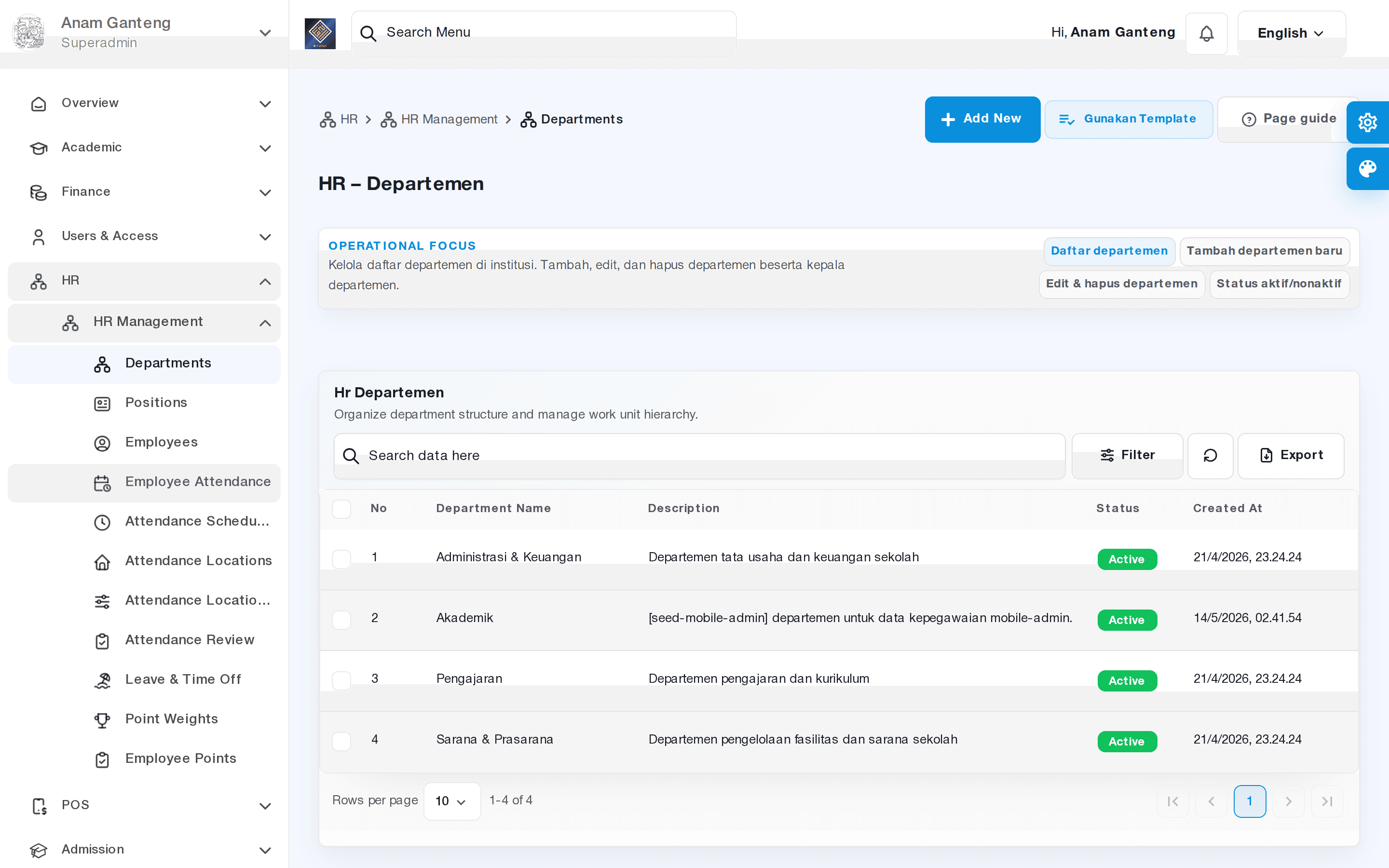
The first step in the human resources module is building your organizational structure. Departments group employees (for example Academics, Administration, Boarding Affairs, Kitchen, Security) so that attendance, leave, and salary reports can be filtered cleanly.
- Open the Departments menu at /admin/hr/departments.
- Click add department, fill in a name and short description, then save.
- Define positions within the department if needed, such as Head, Teacher, Staff, or Officer.
- Repeat until every work unit in the pesantren is represented.
Managing Employee Data
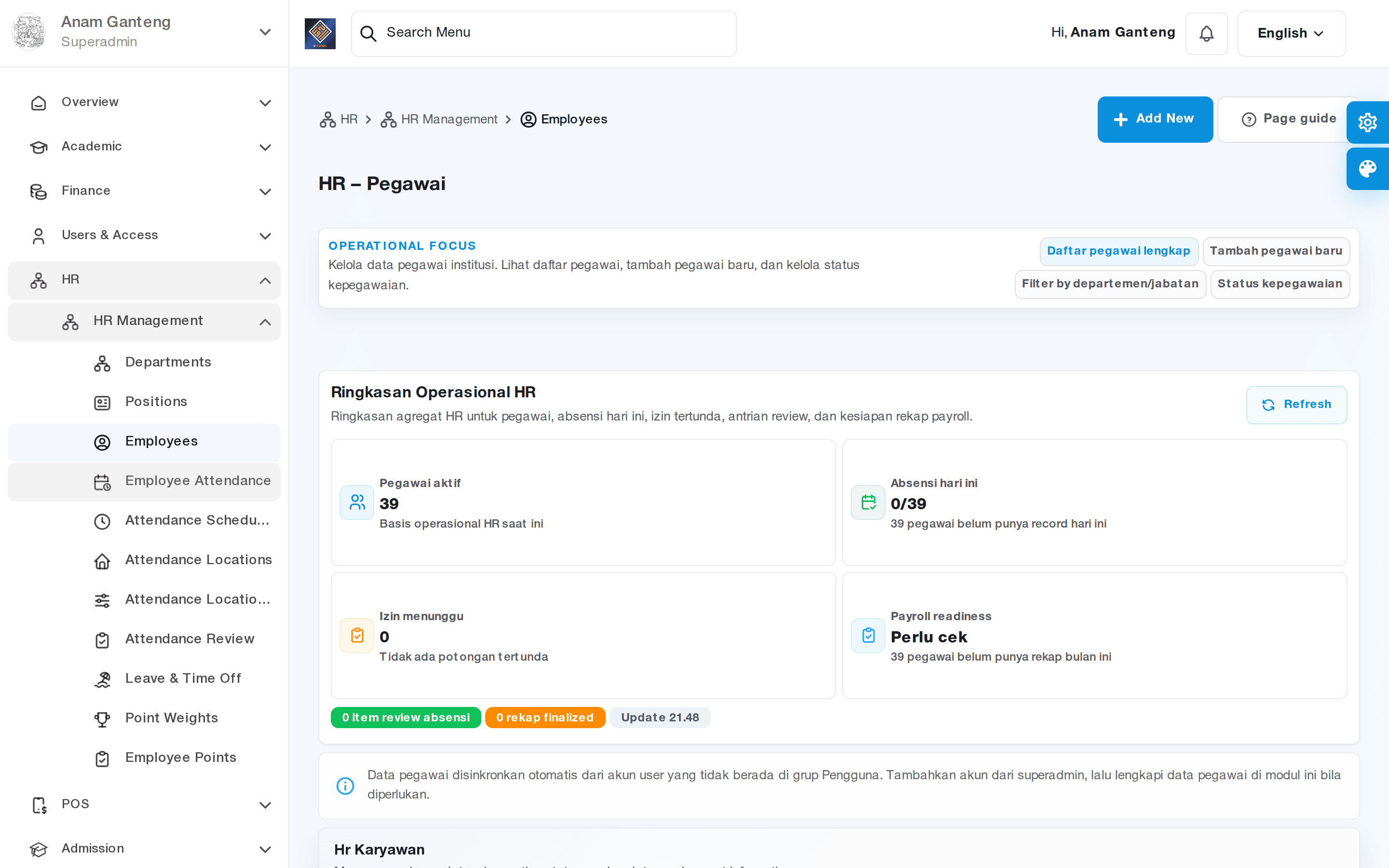
With the structure in place, enter your employee data. The Employees menu is the identity hub for every teacher and staff member that both attendance and payroll rely on.
- Open the Employees menu at /admin/hr/employees.
- Click add employee, complete personal details, staff ID, department, position, start date, and employment status.
- Configure base salary components per employee if your payroll calculates salaries individually.
- Save, then confirm the employee appears under the correct department.
- For inactive or resigned staff, change their status so they are not counted in ongoing attendance and payroll.
Clean employee data from the start makes teacher payroll and reporting far faster because there is no need for manual corrections at the end of the period.
Staff Attendance
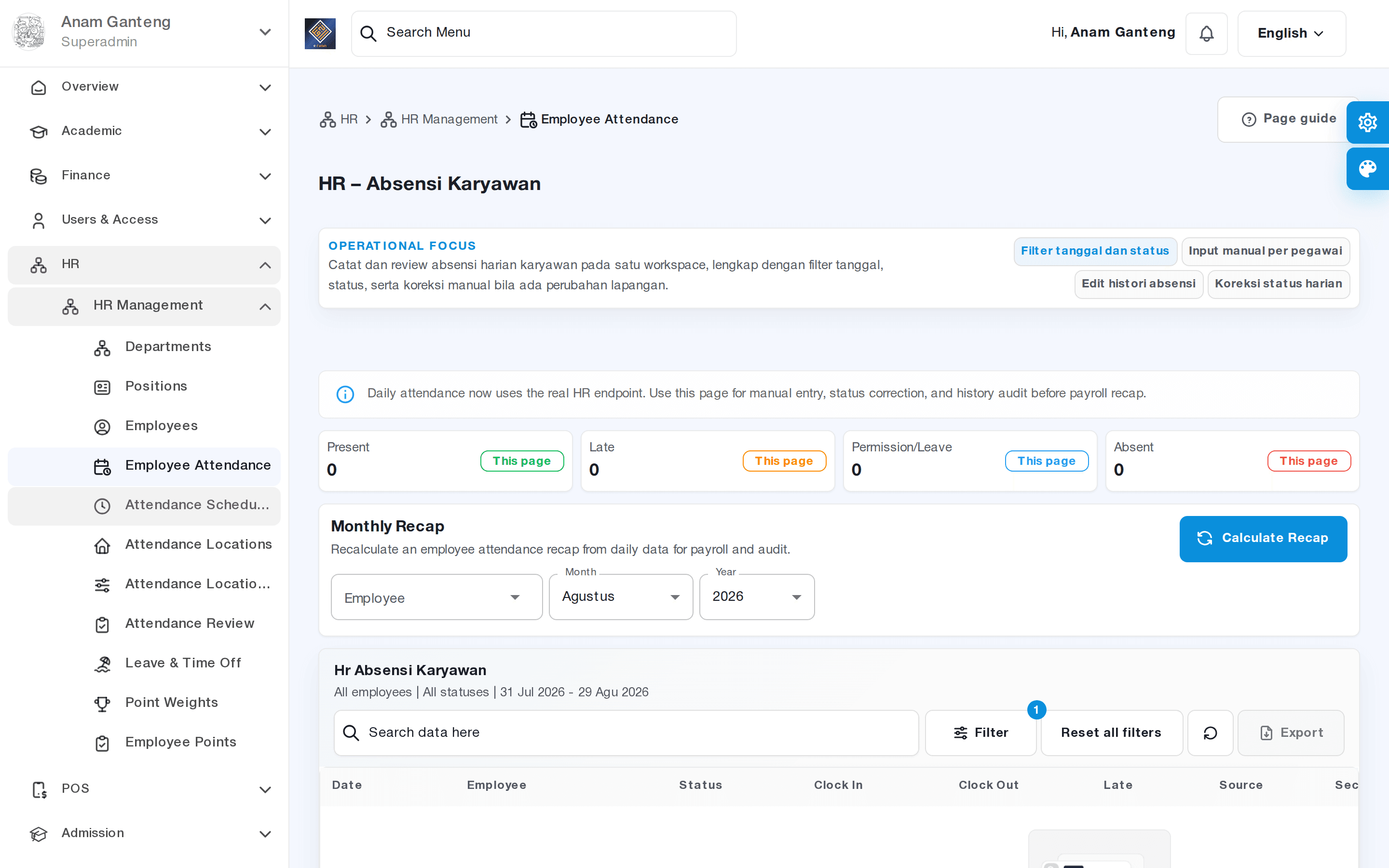
The Employee Attendance module records daily staff presence, which can later affect salary calculation, attendance allowances, or deductions. Location and working-hour rules can be adjusted to match your pesantren policy.
- Open the Employee Attendance menu at /admin/hr/employee-attendance.
- Review the attendance recap by date or by employee, including present, late, permitted, and absent states.
- Make manual corrections when a staff member forgot to check in or a device issue occurred.
- Use the department filter and date range to prepare data before closing the salary period.
Attendance consistency matters: make sure working-hour rules and late tolerances are agreed before the period starts so the recap does not cause disputes.
Leave Requests and Approvals
The Leave Requests menu collects staff permission and leave requests for review by supervisors or HR admins. A recorded approval flow keeps things transparent and makes reconciliation with attendance easier.
- Open the Leave Requests menu at /admin/hr/leave-requests.
- Review incoming requests, including leave type, dates, and reason.
- Approve or reject each request and add a note where necessary.
- Approved requests are reflected in attendance so they are not counted as absences.
Performance Points and Weighting
Some pesantren evaluate staff performance for coaching or incentive purposes. You can define weights and record employee performance points—for example discipline, attendance, or extra responsibilities. These points can inform allowances during payroll, in line with foundation policy. This weighting feature is optional and can be ignored if your pesantren has not yet adopted formal performance appraisal.
Running Payroll
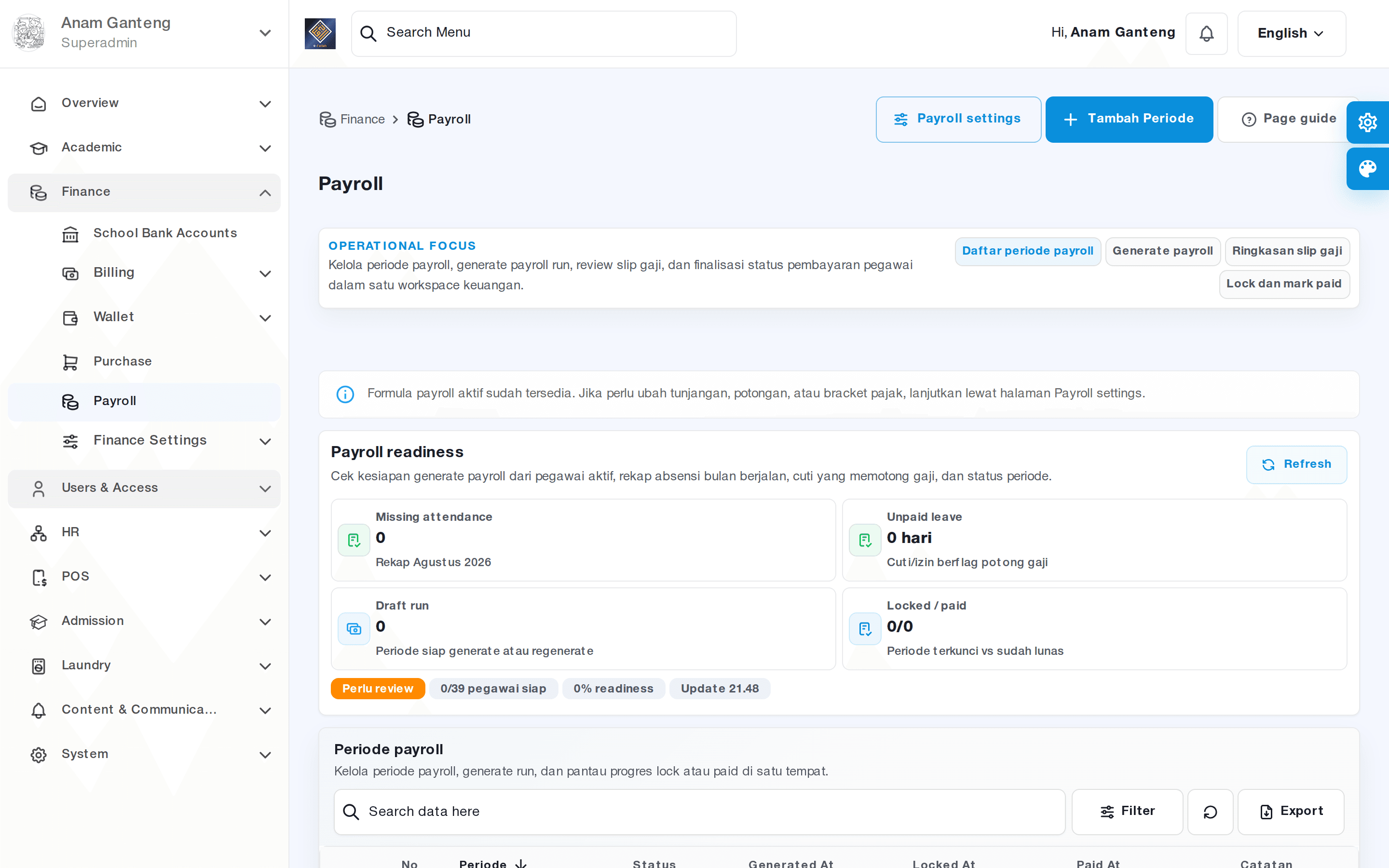
Once attendance and leave are final, run the payroll. Note that the Payroll menu sits under the Finance group, not inside the HR group, because payroll touches the school's cash flow.
- Open the Payroll menu at /admin/payroll.
- Create a salary period (for example monthly), then choose the employees or departments to process.
- Review salary components: base salary, allowances, deductions, and adjustments from attendance or leave.
- Process the calculation, check the total per employee, then finalize the period.
- Download or print pay slips and the payroll report for archiving and foundation reporting.
Always perform a final review before finalizing, because a locked period should not be changed—this keeps your financial audit clean.
Tips & Best Practices
- Build master data in order: departments and positions first, then employee records, so placement is tidy from the start.
- Close attendance and resolve all leave requests before processing payroll to avoid late corrections.
- Standardize salary components and deduction terms early so pay slips stay consistent across periods.
- Use employment status with discipline; a resigned employee left active can still be counted for salary.
- Archive the payroll report every period for audit and foundation reporting needs.
Troubleshooting
- An employee is missing from payroll. Check the employment status and make sure the employee is linked to a department and the selected period.
- Attendance looks incomplete. Filter the correct date range and manually correct missed check-ins before closing the period.
- Leave counted as absence. Ensure the leave request is approved in the Leave Requests menu before the salary period is finalized.
- The Payroll menu is not visible. Payroll lives in the Finance group and needs its own access right; ask an admin to adjust your role.
- Salary totals are off. Recheck allowance, deduction, and attendance-adjustment components per employee before finalizing.
FAQ
Does attendance data automatically affect salary?
It depends on your configuration. Employee attendance can serve as the basis for adjustments, such as absence deductions or attendance allowances, when you process a period in the Payroll menu. Make sure the rules are agreed before the period starts.
Why is the Payroll menu under Finance, not HR?
Because payroll touches cash flow and the school's financial reporting. Employee data is managed in the HR group, while the payment process and its reports live in the Payroll menu under the Finance group.
Can one employee have different salary components?
Yes. You can set base salary components on the employee record, then add specific allowances or deductions during each payroll period.
How do I handle new hires or resignations mid-period?
Add new hires in the Employees menu with the correct start date, and change a resigned employee's status to inactive so they are not counted in the ongoing period.
Are performance points mandatory?
No. Performance weighting and points are optional. Use them only if your pesantren applies formal performance appraisal for incentives or coaching.
Related menus in the app
- Pegawai — the central record of every teacher and staff member with position and employment status.
- Departemen — organize pesantren work units to group attendance and salaries.
- Absensi Pegawai — record and correct staff attendance as the basis for payroll.
- Pengajuan Cuti — review and approve staff leave and permission requests.
- Payroll — process salary periods, calculate components, and issue payroll reports.