
How to Add Subjects
Illustrated steps for adding a new subject, including how to fill in the subject code and other required fields.
3 min readUpdated
Click the ‘Subjects’ button on the left.
Then click the blue ‘Add New’ button to add a subject.
Fill in all fields as shown in the image below:
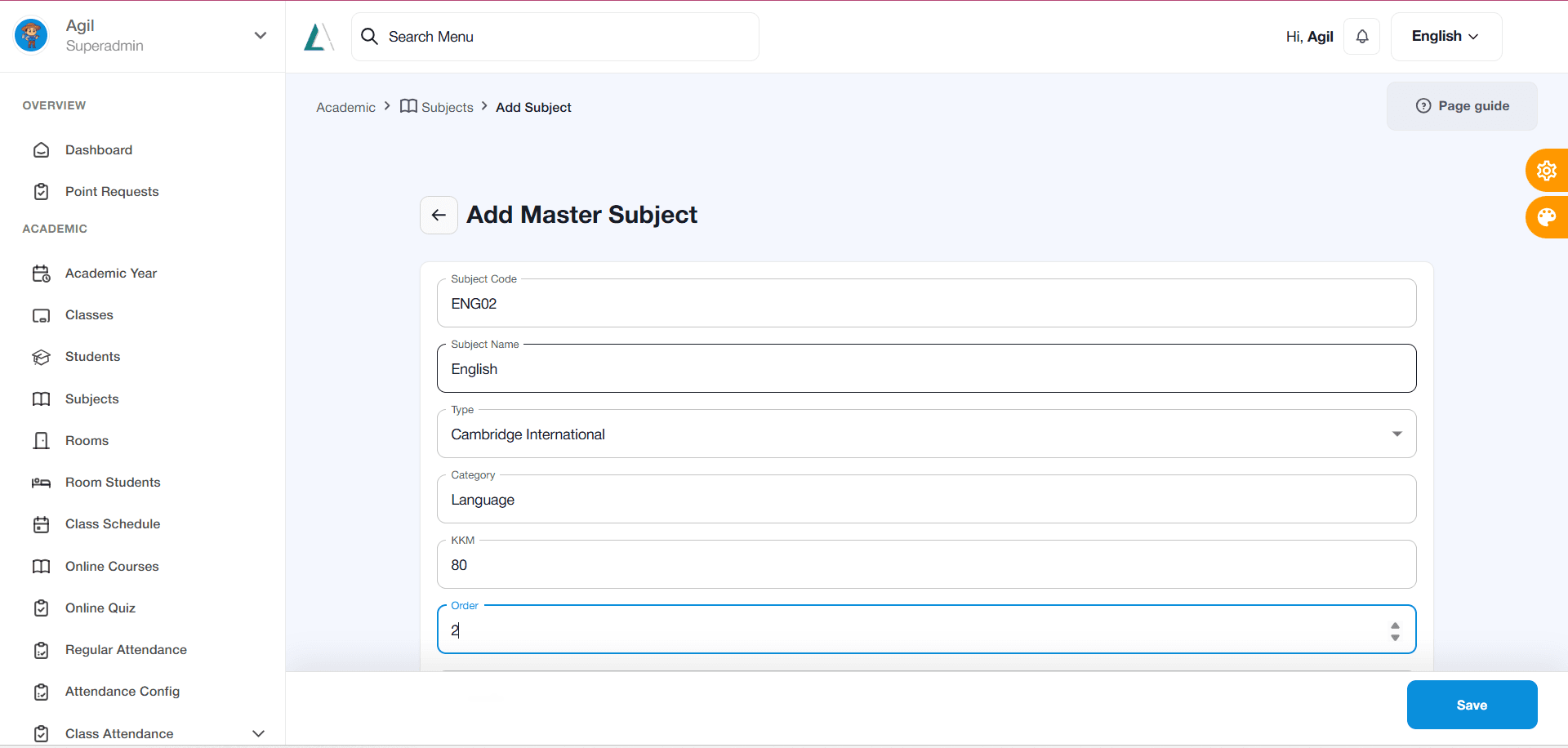
How To Add a Subjects Enter the subject code according to the subject being added; for example, if the subject is English, use the code ‘ENG02’.
If the subject being added is, for example, Chemistry, create a code corresponding to the subject, such as ‘CMS02’.
There are no specific rules for filling in the subject code; it can be entered as the teacher prefers, provided it matches the subject being added.
Similarly, there are no specific rules regarding the numbers used in the subject code.
Next, select the curriculum type used by the institution or school.
Then, fill in the subject category for the added subject, such as Science, Social Studies, Language, etc.
Fill in the Minimum Competency Criteria (KKM) according to the institution’s or school’s standards.
Fill in the “Order” column only for website formalities; in the example above, simply follow the sequence of subjects already listed or registered.
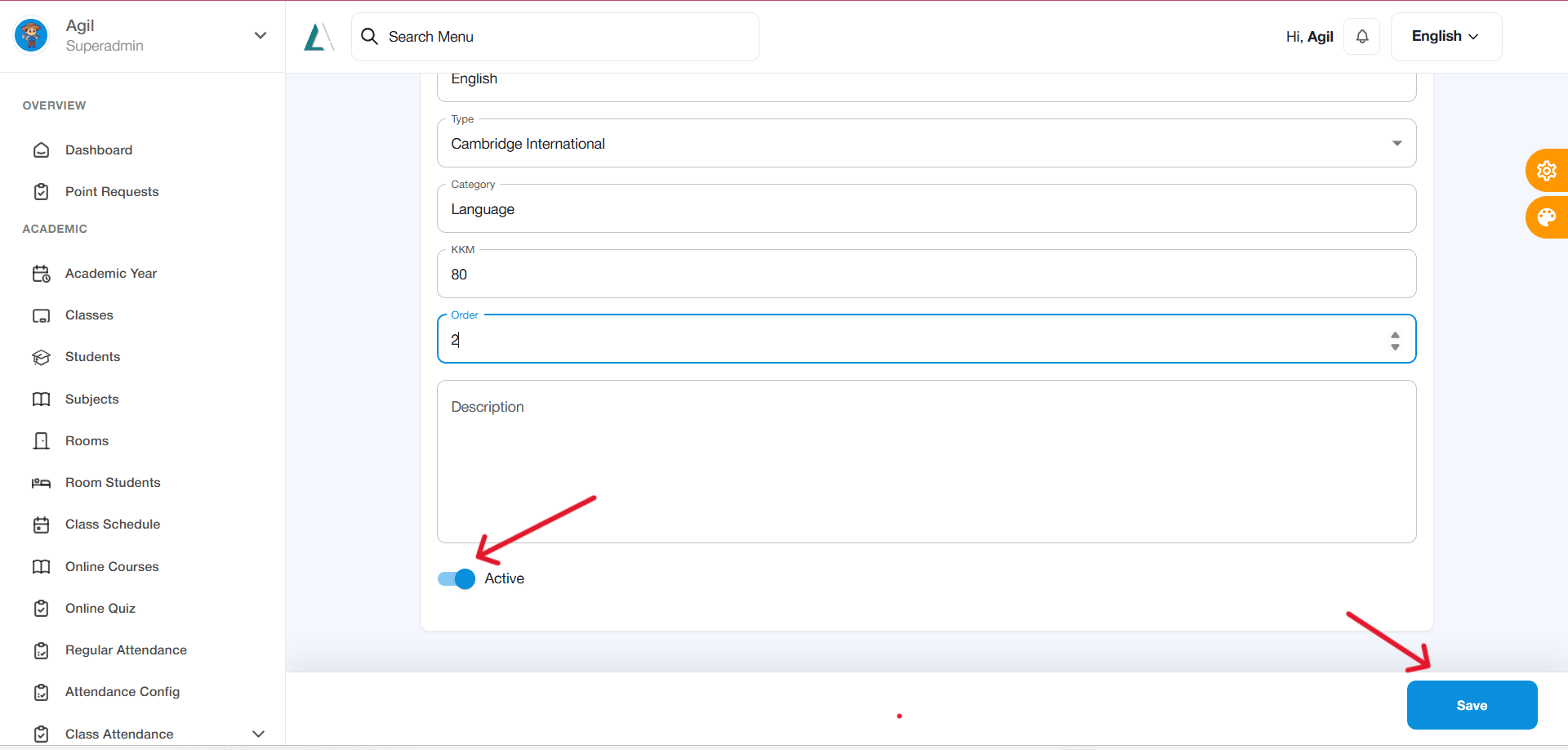
The “Description” column may be skipped or left blank.
Finally, make sure to click the “Activate” button below the “Description” column to mark the subject as in use. The Save button only becomes available once Code, Name, Type, and Category are filled in, then confirm in the save dialog.
Click the “Save” button to save
How To Add a Subjects
Related guides
Academics
Academic Setup: Academic Years, Classes, Students, and Subjects
Set up academic years, classes, subjects, and student class placement in Aerish so schedules, attendance, and grades work from day one.
4 min readRead guide
Academics
Class Schedules, Online Courses, and Online Quizzes in Aerish
Build weekly class schedules, create online courses with meetings, materials, and quizzes, then track student progress and quiz results in Aerish.
4 min readRead guide